
[USER GUIDE · SEPTEMBER 2026]
The ToneBridge user guide.
How to use ToneBridge to adapt approved copy from any language into any other, with your terminology enforced and your voice applied on every output, and a record of who checked and approved what.
- en-GBA complimentary breakfast
- fr-FRUn petit-déjeuner offert
- jaコンプリメンタリーの朝食
- ar-AEفطور على سبيل الضيافة
Getting started
[tonebridge.io → Login]
ToneBridge turns your approved content into a multilingual brand system. Your team keeps one terminology bank (every brand concept with its preferred, allowed and forbidden terms in each language) and a voiceprint for each language (how the brand sounds in it). Every translation you run in Bridge enforces both, and shows reviewers what was checked before anyone approves it.
A brand with several lines of business, for example a bank with Business banking, SME and Individual, sets each up as a segment. A segment follows the brand’s terminology and voice, and adds its own: the words it focuses on, and how it sounds.
The examples in this guide come from Orivane Group, a fictional hospitality brand used for demonstrations, with terminology in eight languages.
Sign in
- Go to tonebridge.io/login and enter your work email.
- Click Email me a sign-in link. There is no password to remember.
- Open the email and click the link. It opens a short Continue page; click Continue to ToneBridgeand you’re in.
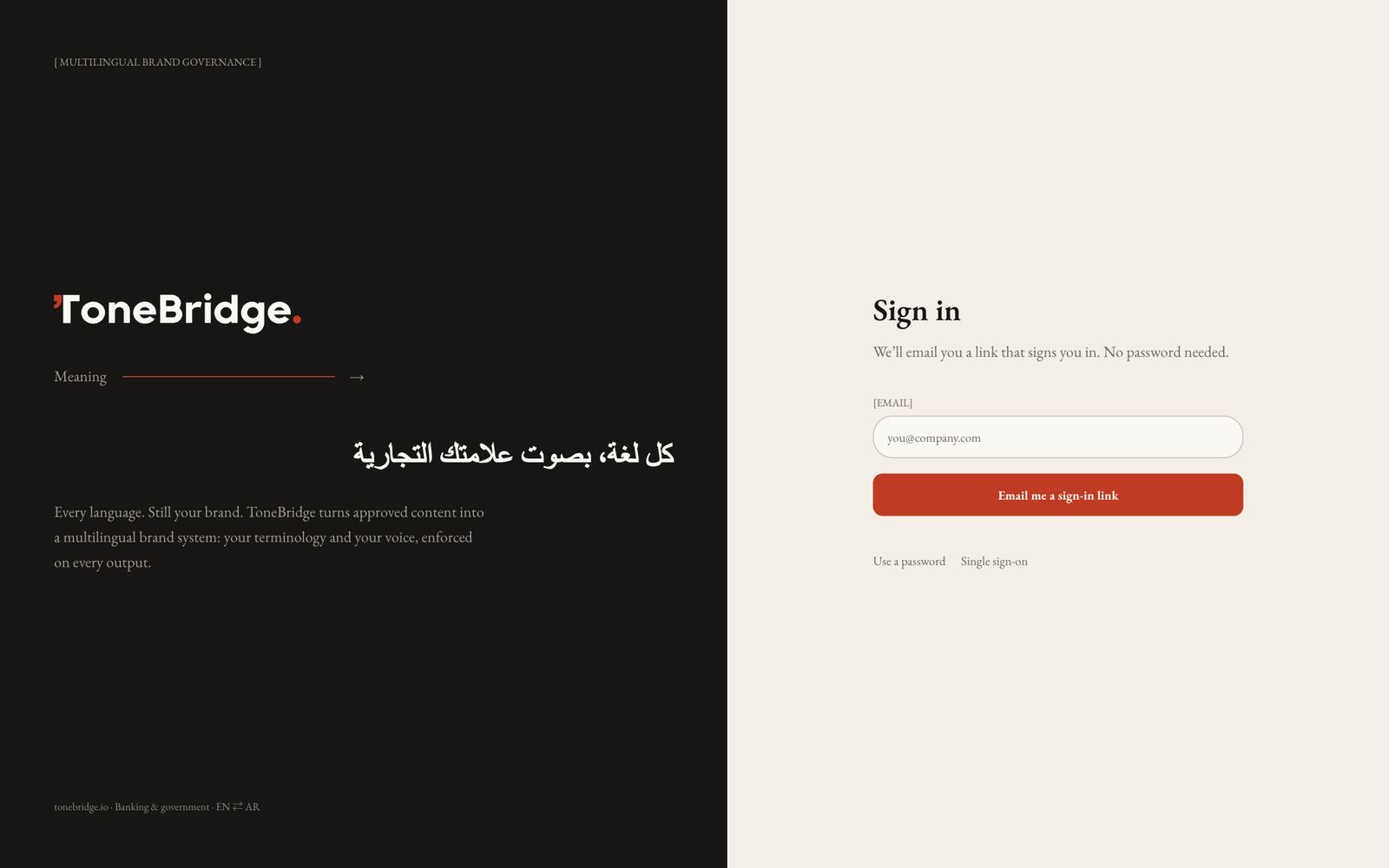
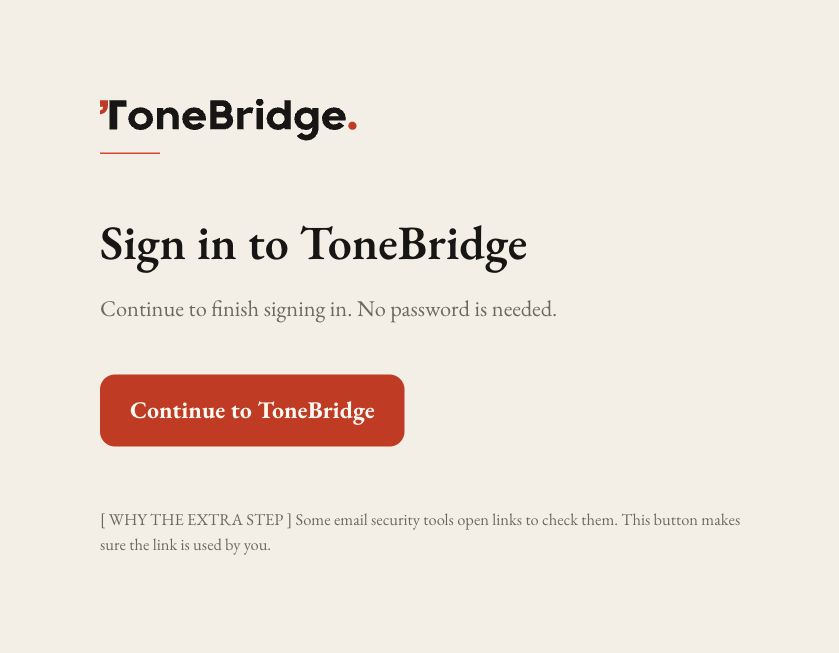
Sign-in links last an hour and work once. If a link has expired, request a new one from the sign-in page.
Roles
Everyone in a workspace has one of three roles, shown under your name at the bottom of the menu. Roles are enforced in the database, not only hidden on screen, so they hold through the API too.
| [ROLE] | [WHAT THEY CAN DO] |
|---|---|
| Brand owner | Everything an editor can do, plus Settings, the team, the approval policy, and reopening approved work. |
| Editor | Adapts copy, edits translations, approves or sends back, and maintains the terminology, voiceprints and audiences. |
| Viewer | Reads translations, the terminology, voiceprints and Signal. Can't change anything. |
The user journey
Most teams follow the same loop. The first three steps build your brand memory once and keep improving it; the rest you repeat for every piece of copy.
- [01]Build the terminologyImport your glossary as a CSV, mine terms from approved material, or add concepts by hand.[TERMINOLOGY]
- [02]Capture the voiceDerive a voiceprint for each language from copy your brand has already approved, then activate it.[VOICEPRINT]
- [03]Set up segments and audiencesGive each line of business its own terms and voice on top of the brand's, and name who you write for.[SEGMENTS · AUDIENCES]
- [04]AdaptPaste or import approved copy in any language and choose any target. Terms are enforced and checked on every run.[BRIDGE]
- [05]Review and approveRead the checks, back-translate, edit if needed, send back with a reason, or approve. Export to Word.[REVIEW]
- [06]Watch for driftSignal flags any output that used a forbidden term, and brand owners can get an email when it happens.[SIGNAL]
Finding your way around
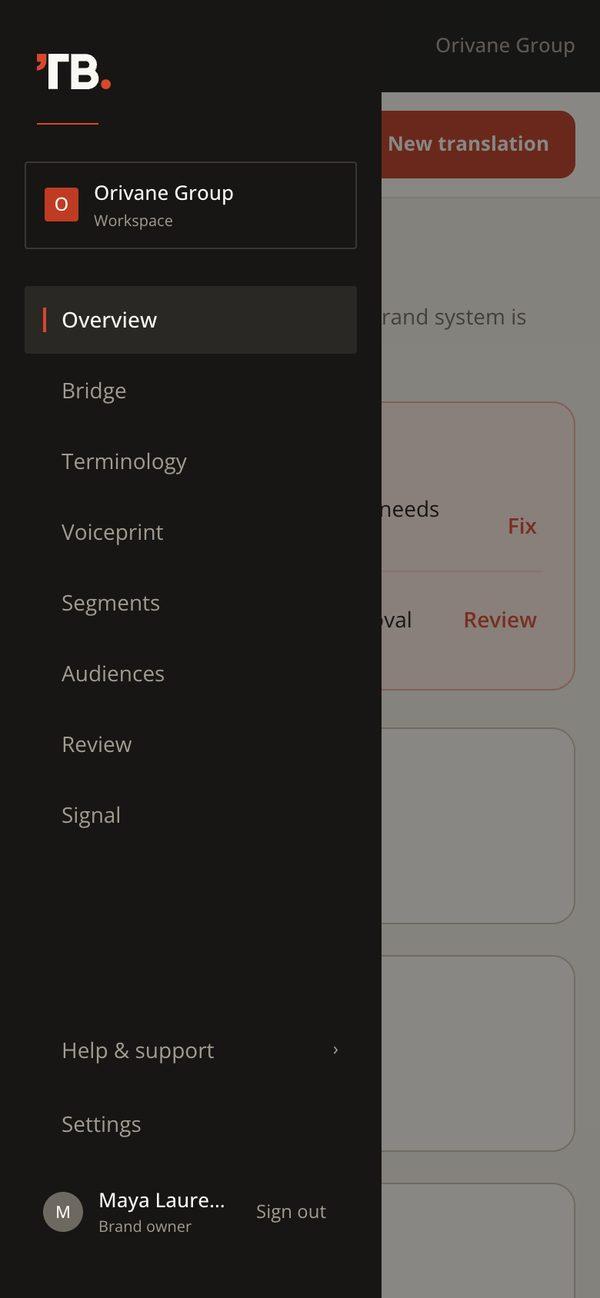
The menu on the left lists Overview, Bridge, Terminology, Voiceprint, Segments, Audiences, Review and Signal. At the bottom: Help & support, then Settings for brand owners (everyone else sees Team), and your name, role and Sign out.
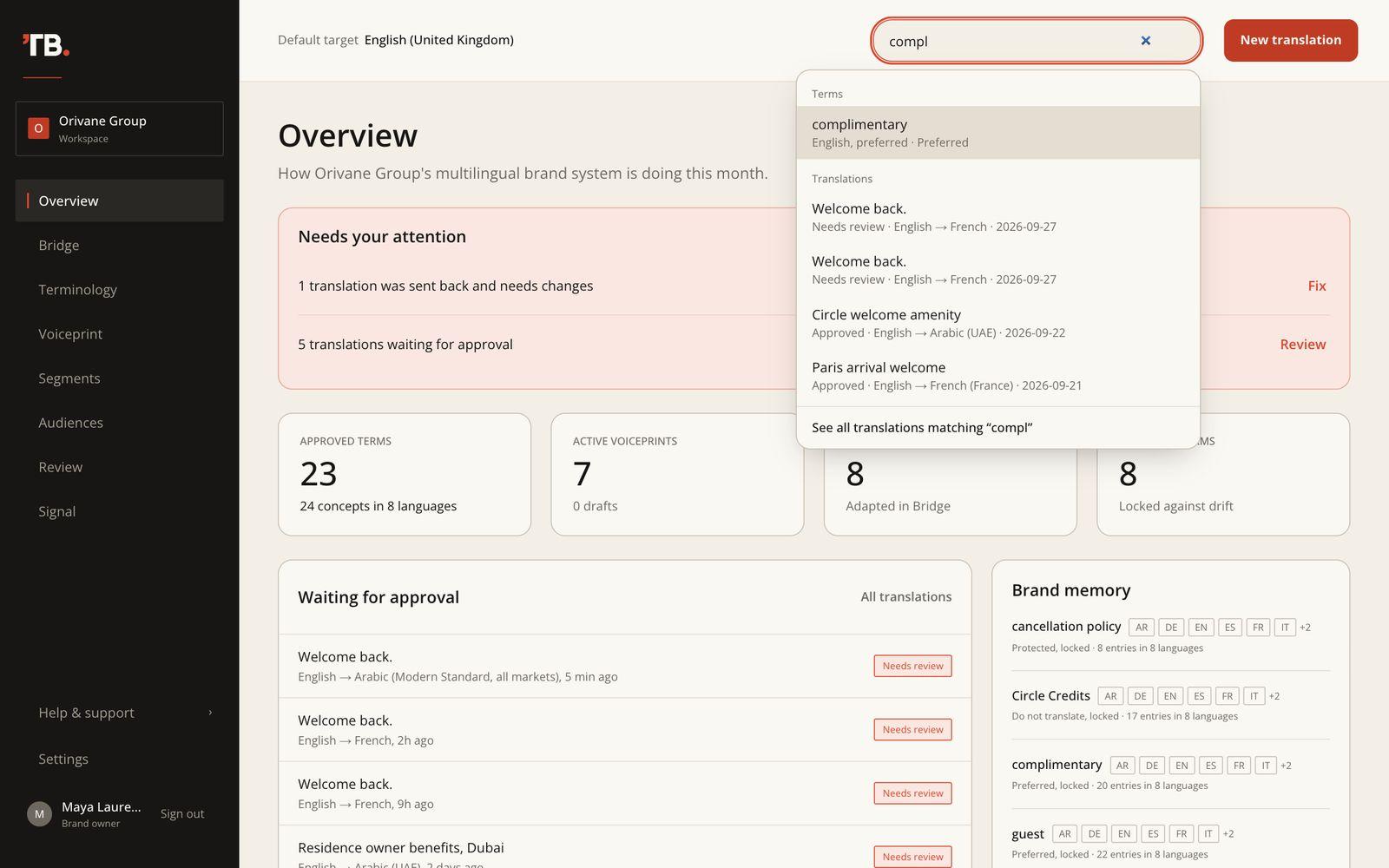
The top bar shows the workspace’s default target language, the search box, and New translation, which opens Bridge.
Search with ⌘K
Press ⌘ K (Ctrl K on Windows) from any page, or click the search box, and type at least two letters. Results are grouped into terms (in any language), voiceprints, audiences and translations. Use ↑ ↓ and Enter to open one, or See all translations matching to search Review.
Overview
[Menu → Overview]
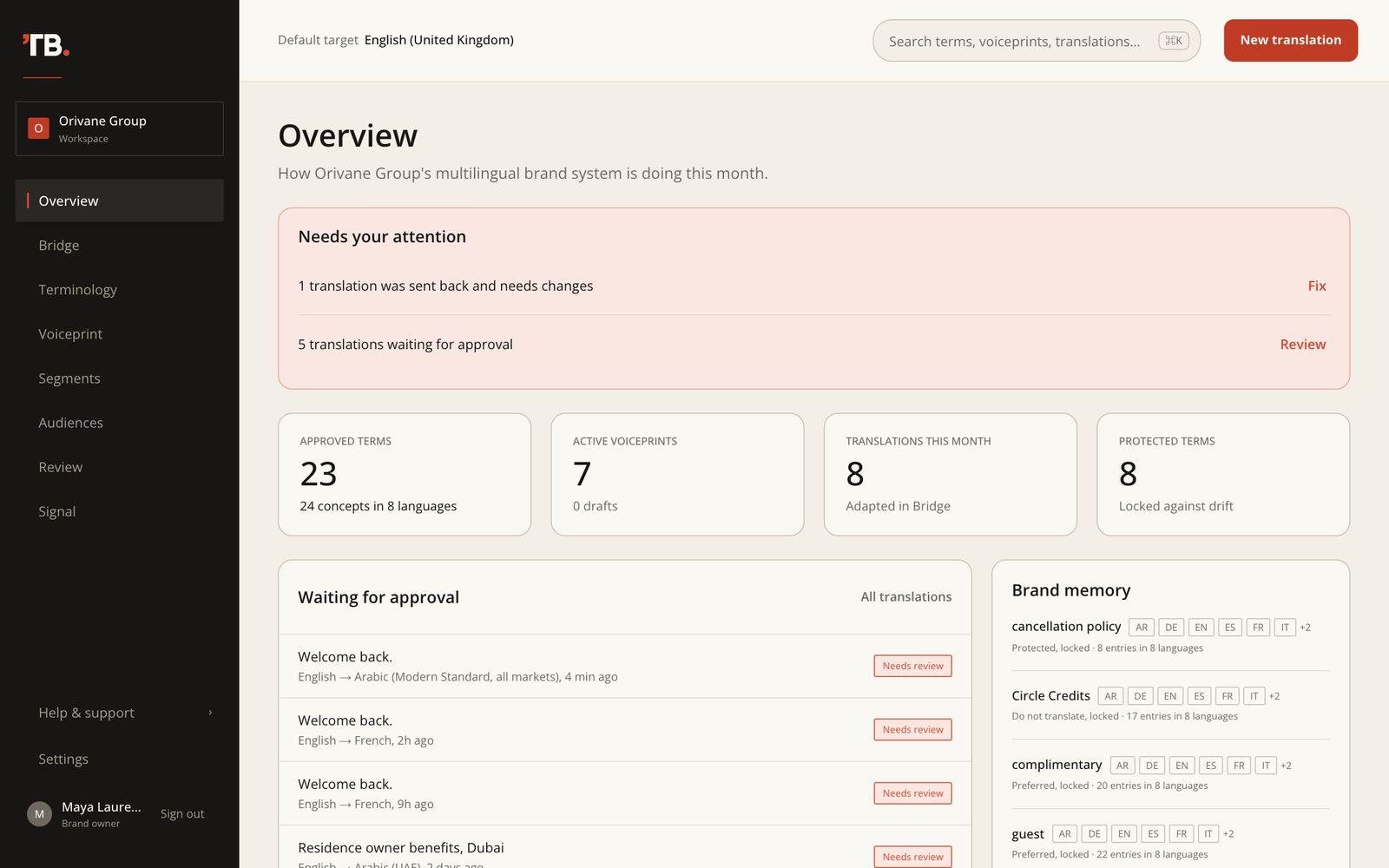
Your home page: what needs doing, and how the brand system is holding up this month.
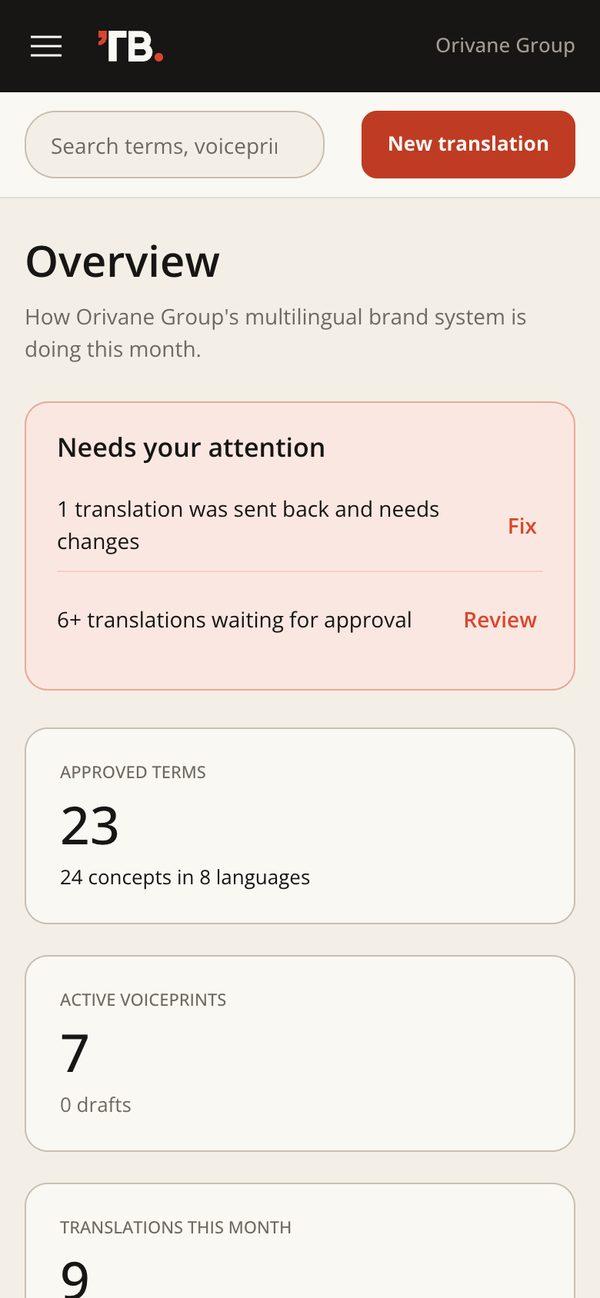
- Needs your attention lists translations sent back to be fixed and translations waiting for approval, each with a link straight there.
- Four figures: approved terms, active voiceprints, translations this month, and protected terms.
- Waiting for approval shows the translations not yet approved, with their language pair.
- Brand memory lists your protected terms and the languages they cover.
Bridge
[Menu → Bridge, or New translation in the top bar]
Bridge takes approved copy in any language and returns brand-ready copy in any other, with every term in your terminology bank enforced.
Set up a run
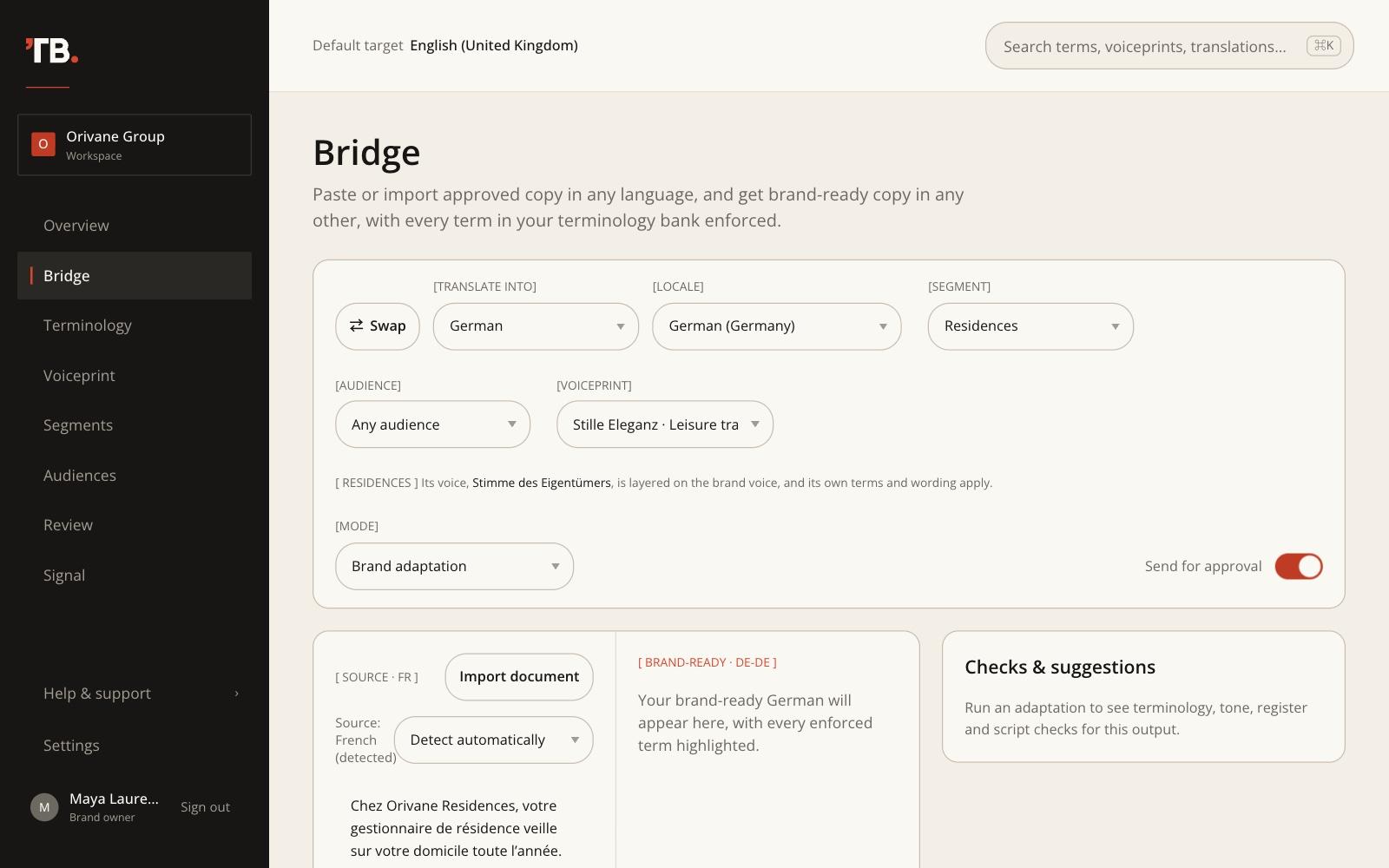
- Translate into. Any of 36 languages. Swap exchanges source and target.
- Locale. Where the target has variants, pick one, for example French (France) or French (Canada), Arabic (UAE) or Arabic (Saudi Arabia). It tunes spelling, vocabulary and conventions.
- Segment. Shown when your brand has segments. Leave it on Whole brand, or choose one: the run then adds that segment’s terms, its own wording of brand terms, and its voice layer. A note under the controls names the segment voice being layered on.
- Audience. Optional. Choosing one also selects its segment and default voiceprint.
- Voiceprint.The brand voice to write in. Only active brand voiceprints for the target language are listed; a segment’s voice is added on top automatically.
- Mode. How freely to adapt, from the table below.
- Send for approval. On by default: the result joins the approval queue. Turn it off for a draft.
| [MODE] | [USE IT FOR] |
|---|---|
| Literal / accurate | Product facts, instructions, anything where meaning must not move. |
| Brand adaptation | Most customer-facing copy: the meaning exactly, in your brand's voice. The default. |
| Marketing transcreation | Campaigns, headlines and taglines, rewritten to land in the target culture. |
| Cultural localisation | Content with references, idioms and customs that need adapting to the market. |
| Legal precision | Terms and conditions, policies and disclaimers: every obligation mirrored exactly. |
Paste or import the source
Paste text into the source panel, or click Import document to load a PDF, a Word file (.docx) or an image (JPG or PNG). ToneBridge reads the text in for you to check; nothing is translated until you click Adapt. The source language is detected as you type; choose it under Source language if the guess is wrong. One run takes up to 1,500 words; longer documents, up to 15,000 words, are adapted in sections and saved as one translation, with a progress bar while it works.
Adapt, and read the result
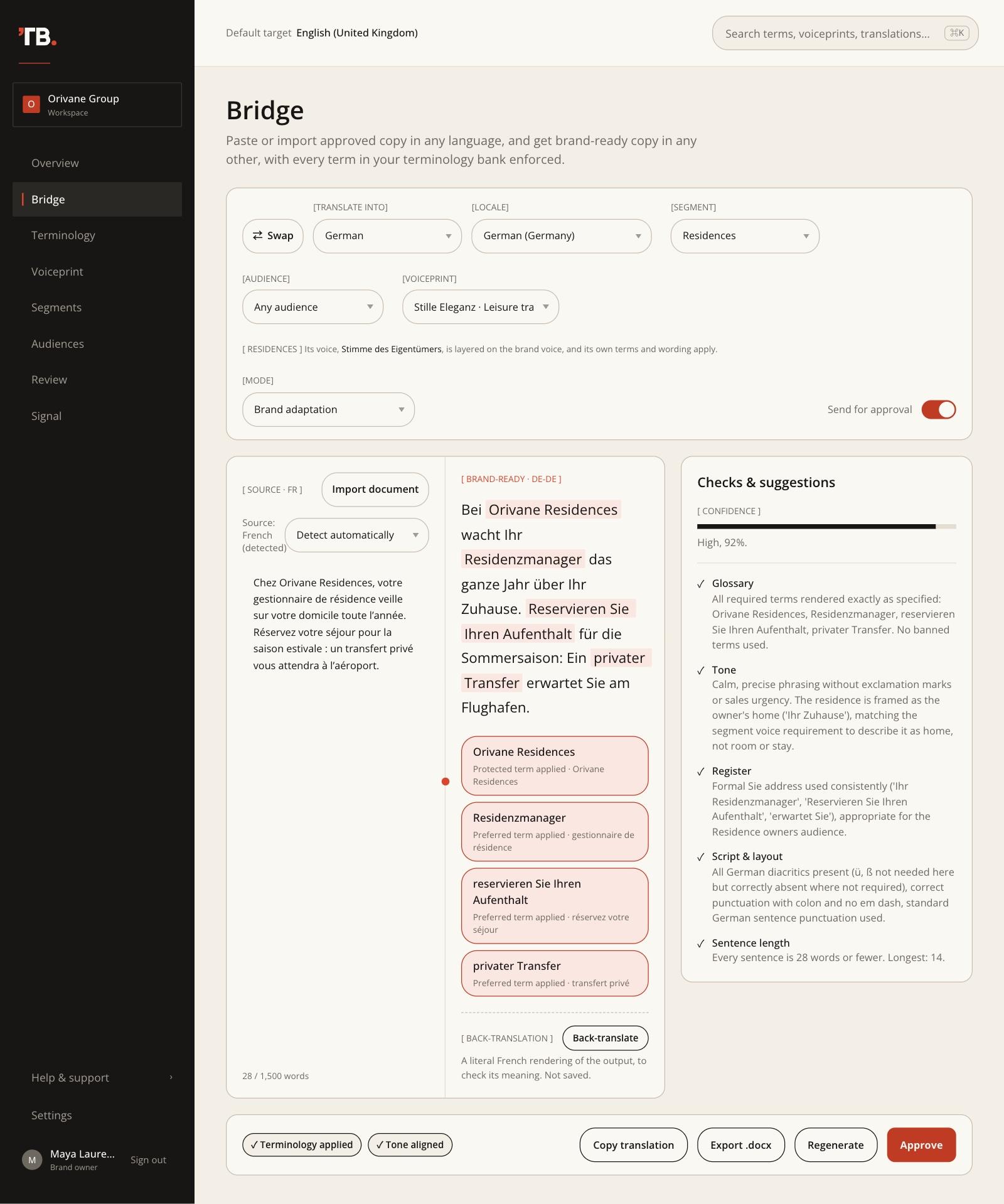
Click Adapt. The output appears with every enforced term highlighted, and a chip for each term saying how it was applied (preferred, protected or kept as written). The Checks & suggestions panel shows a confidence bar and each check a reviewer would otherwise do by hand: glossary, tone, register, script and layout, and sentence length.
Sentence length
Every run measures the output’s sentences. If the voiceprint sets a longest sentence, Bridge flags any sentence over it; otherwise it flags sentences over 35 words. Languages written without spaces, such as Chinese, Japanese and Thai, are measured in characters (60 by default).
Back-translation
Under the output, Back-translaterenders it literally back into the source language, so you can check the meaning when you don’t read the target. It isn’t saved.
After the run
Every run is saved to Review. The bar at the bottom has Copy translation, Export .docx, Regenerate and Approve. If you change the source or a setting after a run, Bridge marks the output as out of date until you regenerate, and each regenerate saves a new version.
Review and approval
[Menu → Review]
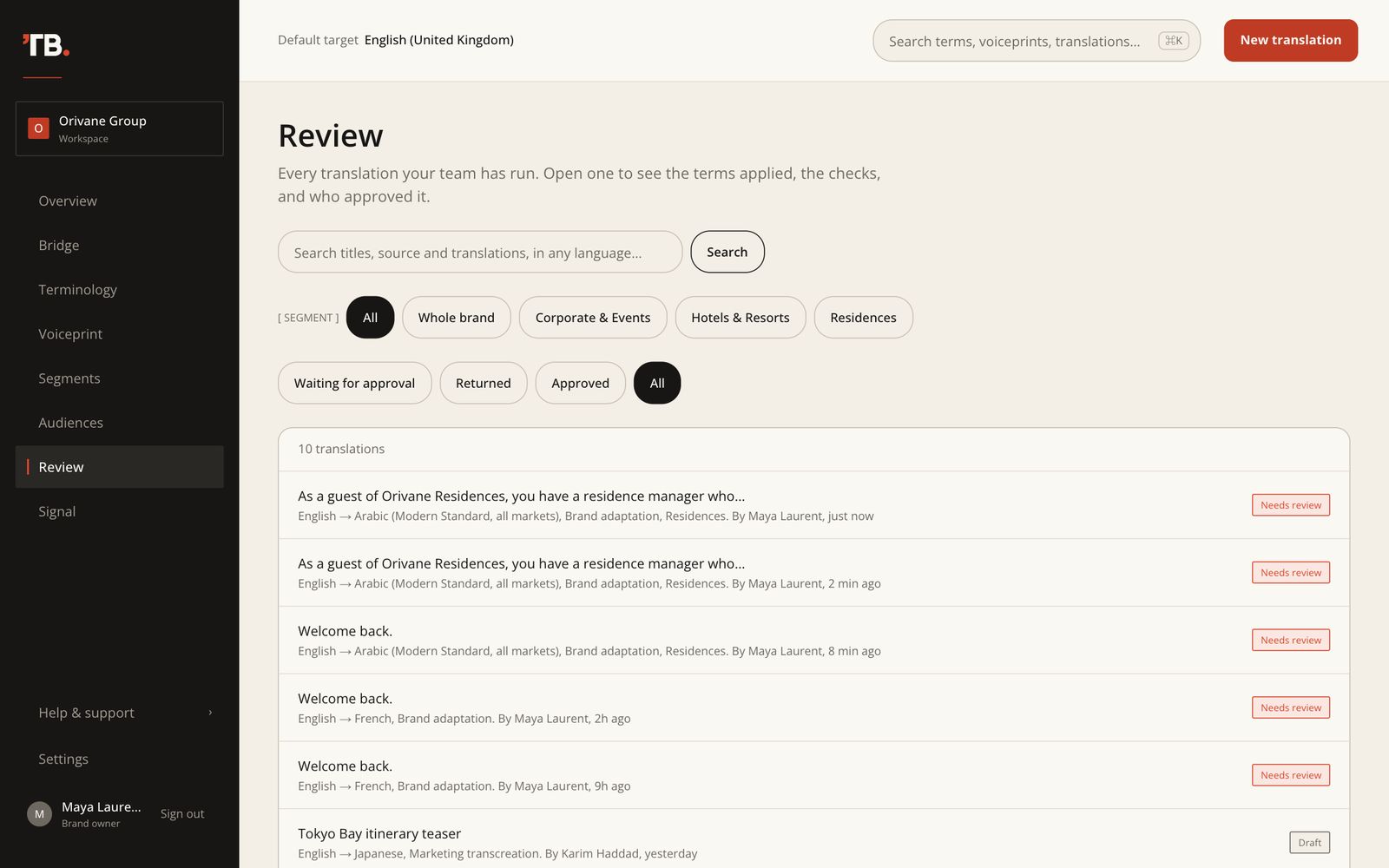
Review lists every translation your team has run, newest first. Search titles, source and output in any language, and filter with Waiting for approval, Returned, Approved or All. With segments, a second row filters by segment or the whole brand.
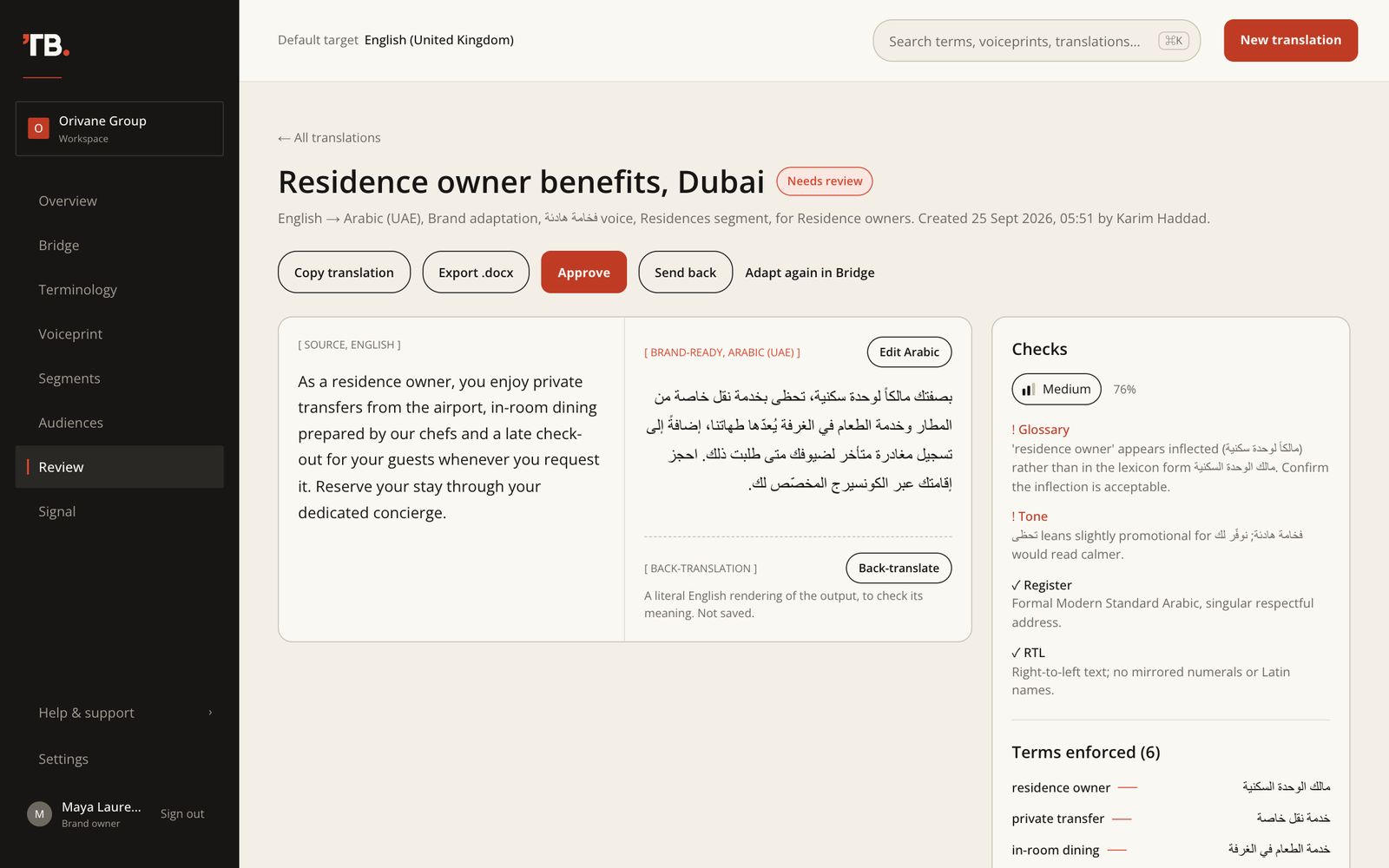
The translation page
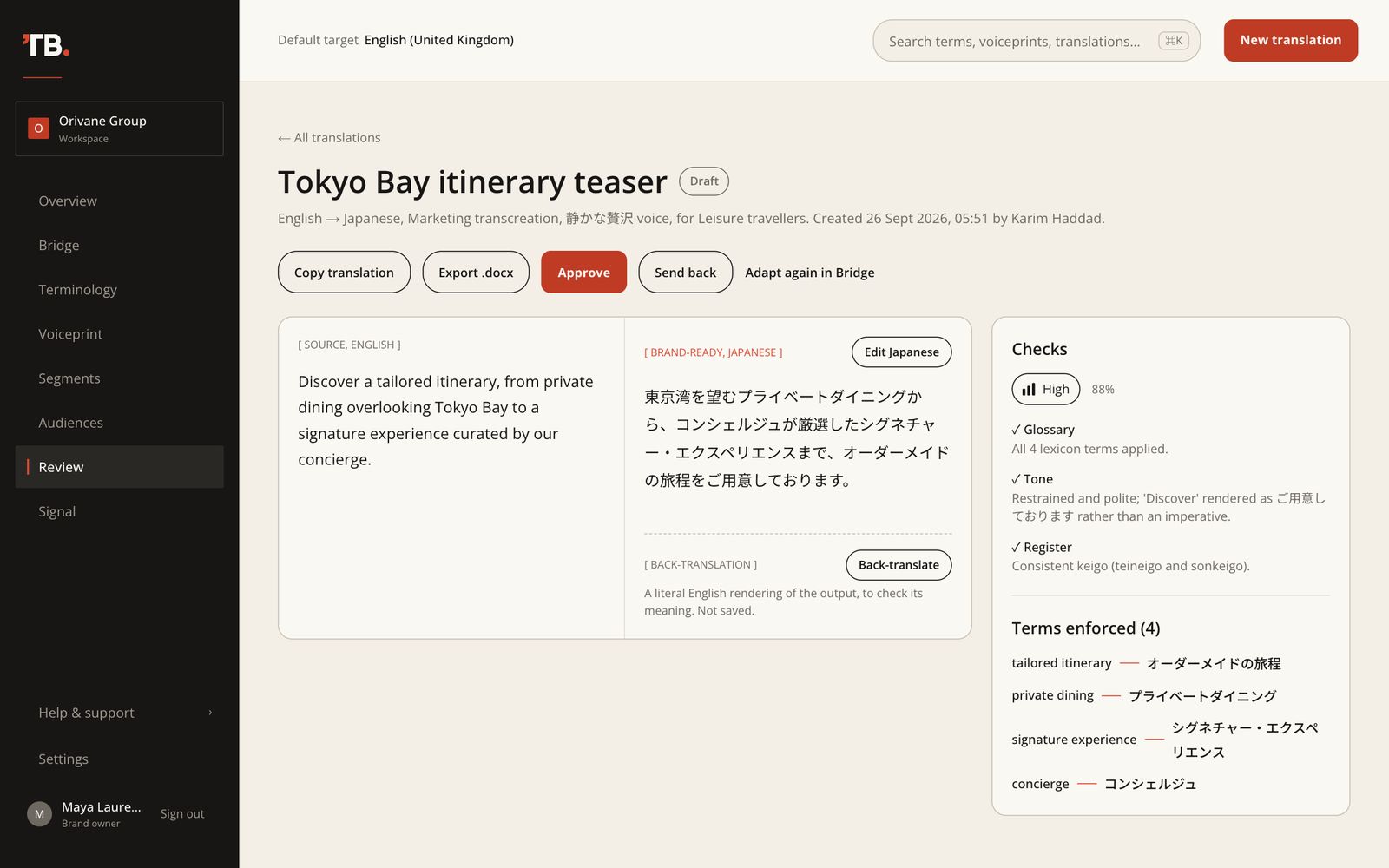
Open a translation to see the source beside the brand-ready output, the checks with the confidence score, and every term enforced. The line under the title records the pair, mode, voiceprint, audience, and who created it and when. The buttons along the top are Copy translation, Export .docx, Approve, Send back and Adapt again in Bridge.
Back-translate
Click Back-translate under the output for a literal rendering in the source language. Hide closes it. Nothing is saved.
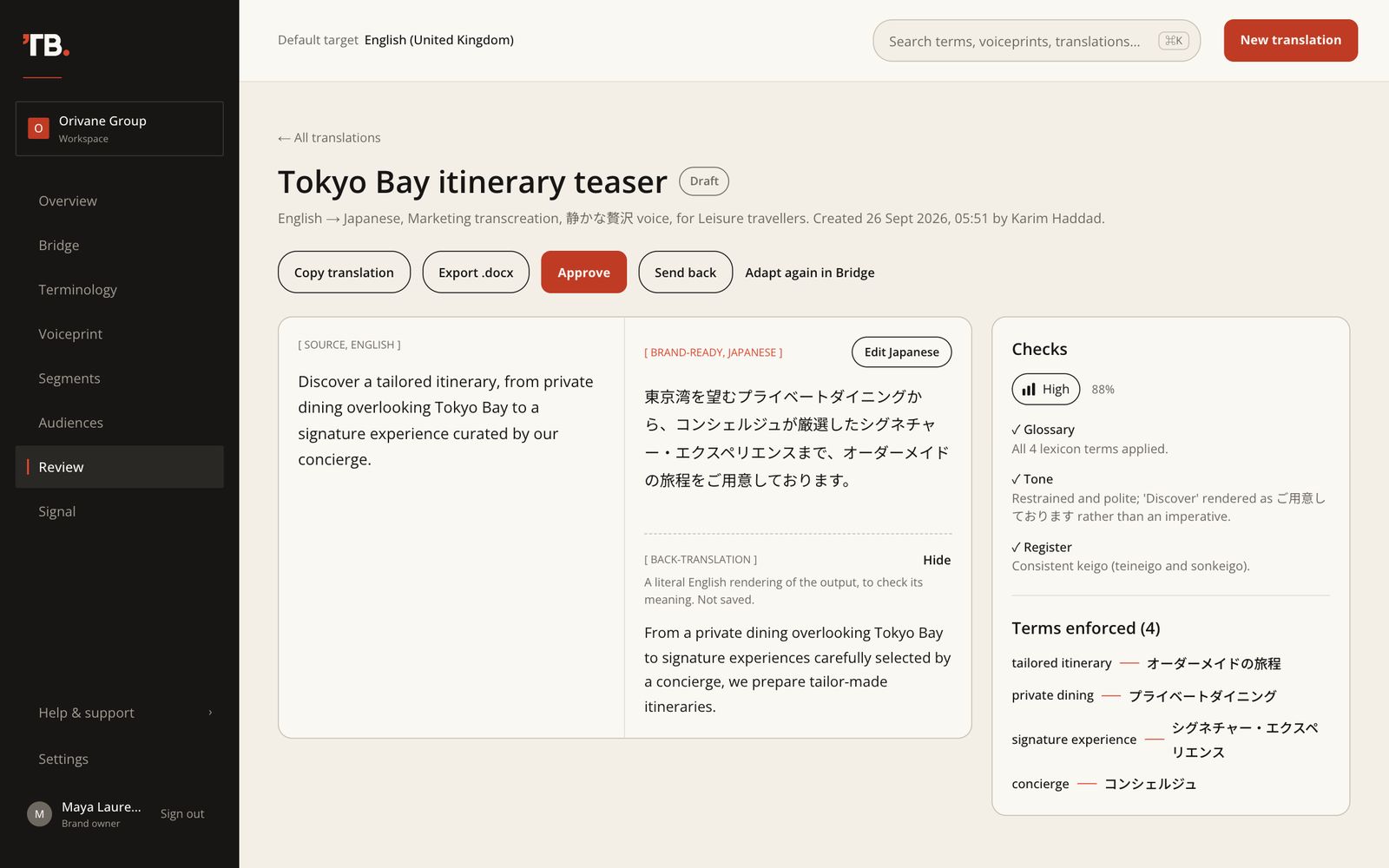
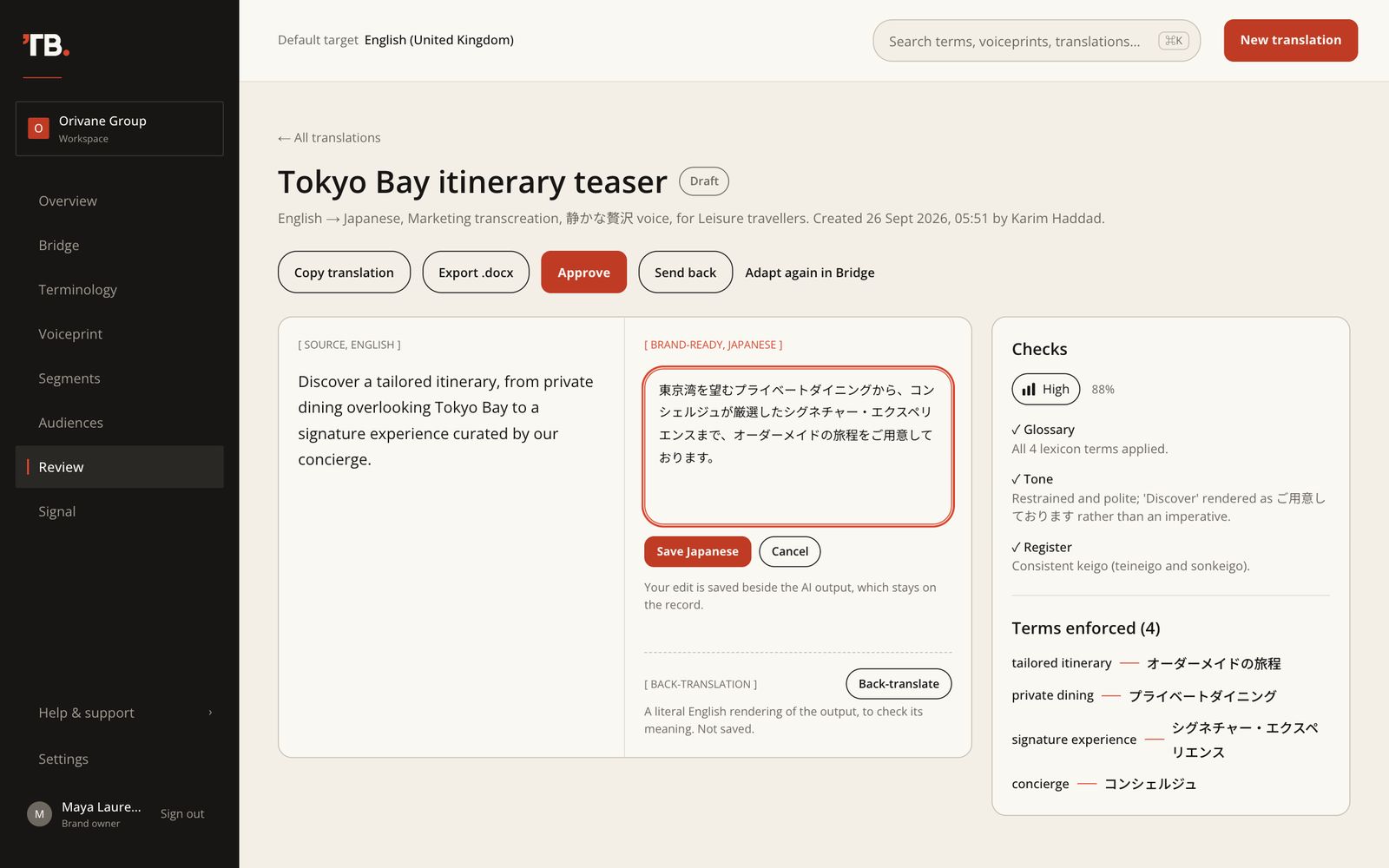
Edit the output
Click Edit Japanese(the button names the output’s language), change the text and save. Your edit is kept beside the AI output, which stays on the record: View the AI original shows it and Revert to AI version brings it back. The Word export notes who edited the text.
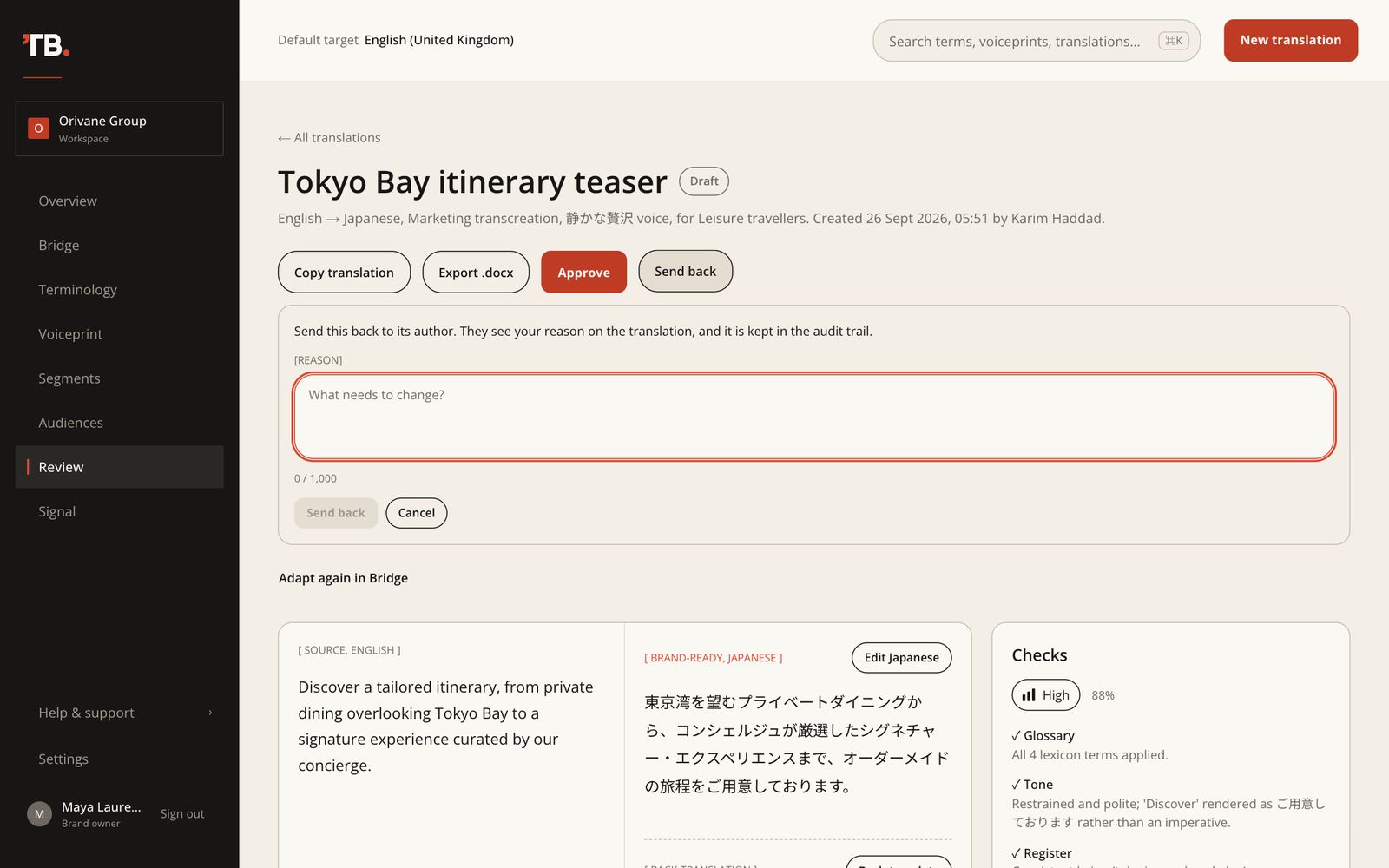
Send back
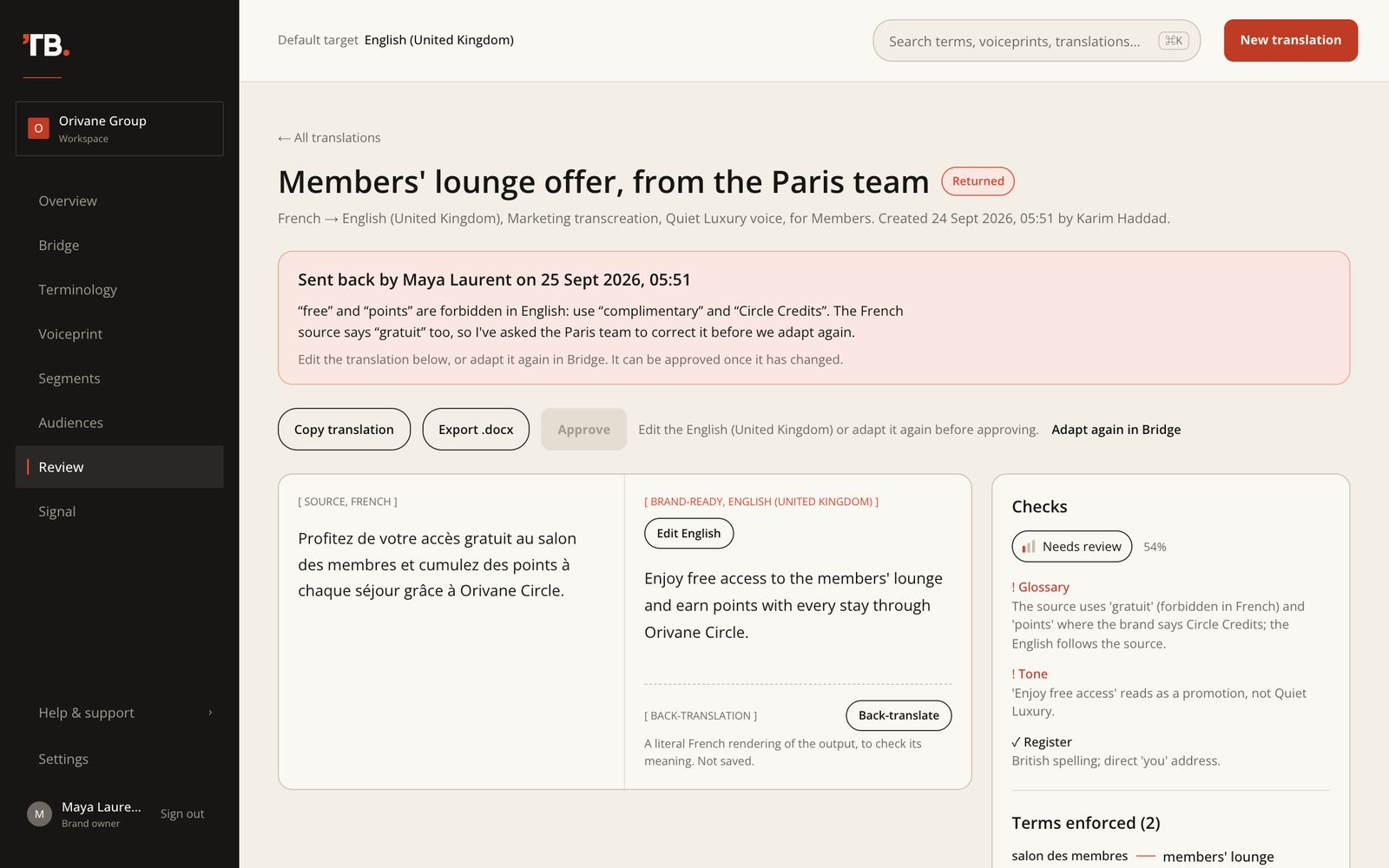
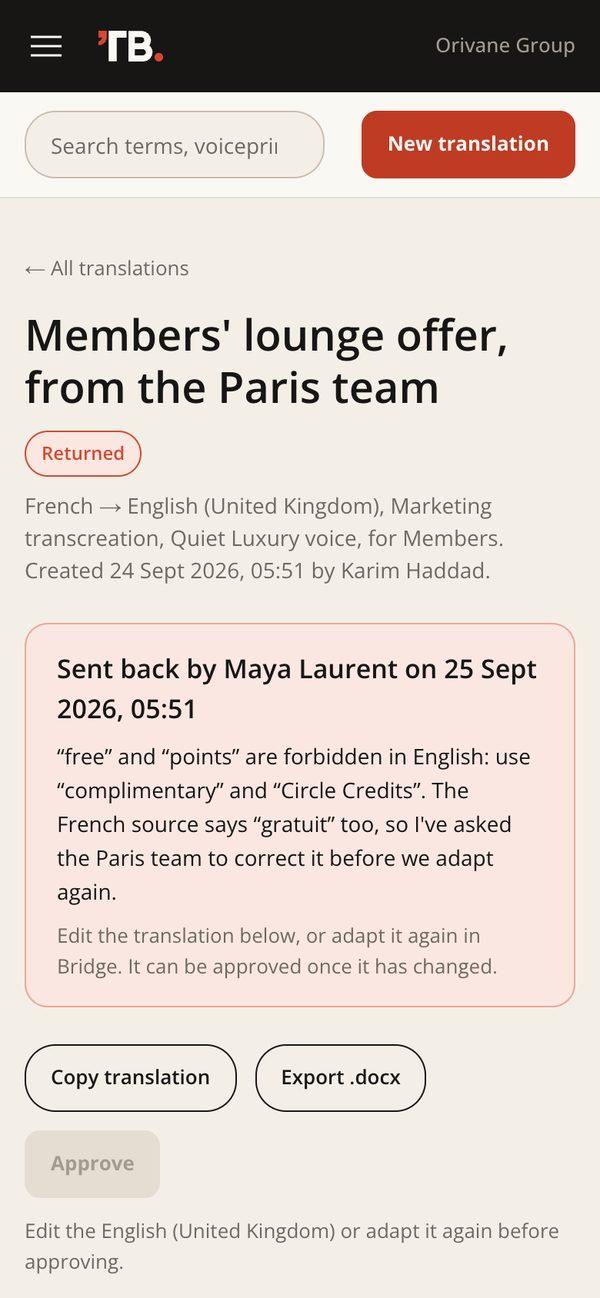
If something needs to change, click Send back and give the reason. The translation becomes Returned: its page shows who sent it back and why, and Overview lists it under Needs your attention. It can be approved again once its output has changed, by editing it or adapting it again in Bridge.
Approve
Click Approve. If the output has open checks or low confidence, ToneBridge asks you to confirm first. Approved text is locked: nobody can edit it until a brand owner clicks Reopen, which returns it to Needs review. The original approval stays in the audit trail.
Export to Word
Export .docx downloads a bilingual Word file: a header with the pair, market, voiceprint, segment, audience, mode, version and status; the source and output side by side; the terms applied; each check; and the approval. Right-to-left languages are laid out right to left.
Terminology
[Menu → Terminology]
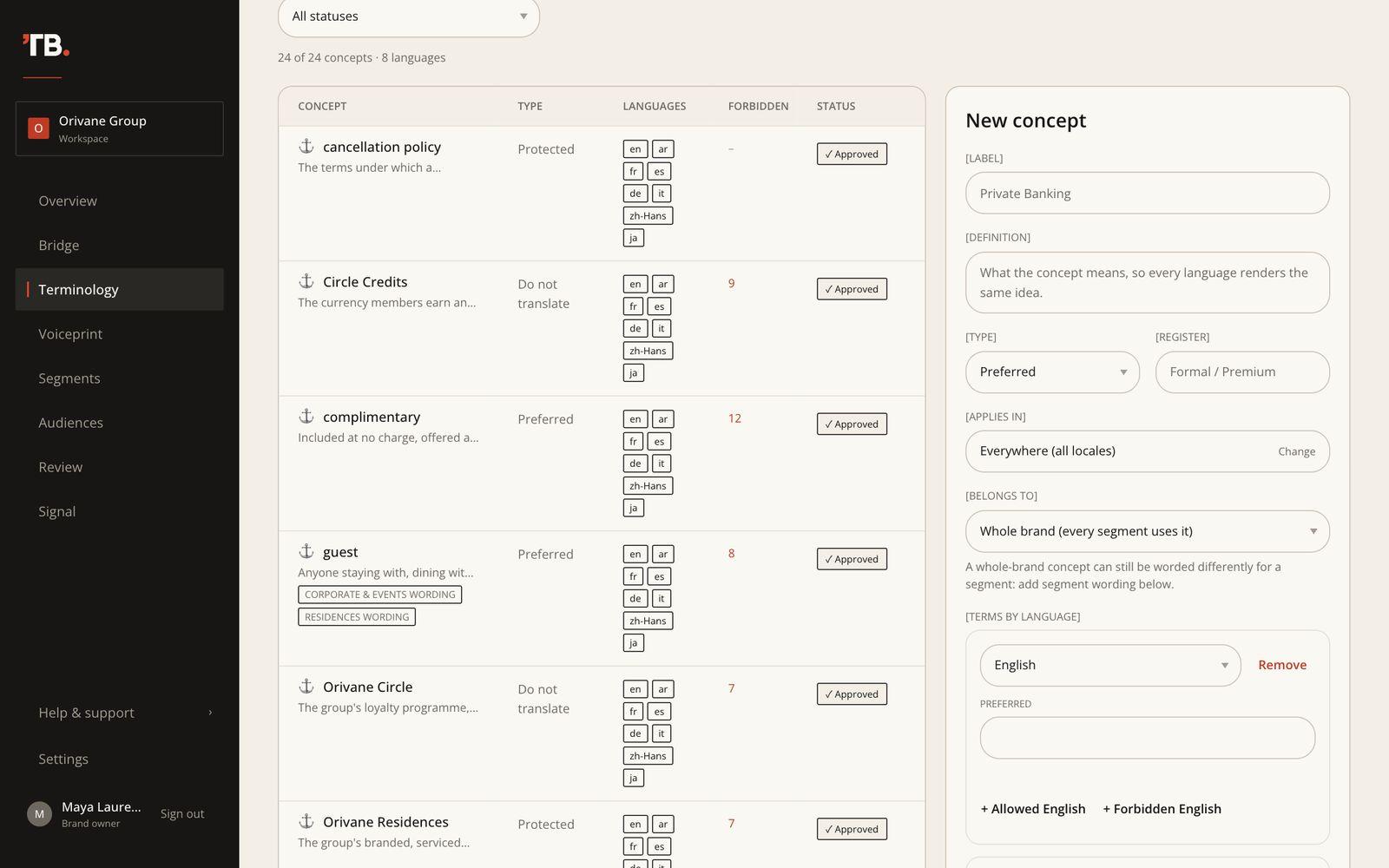
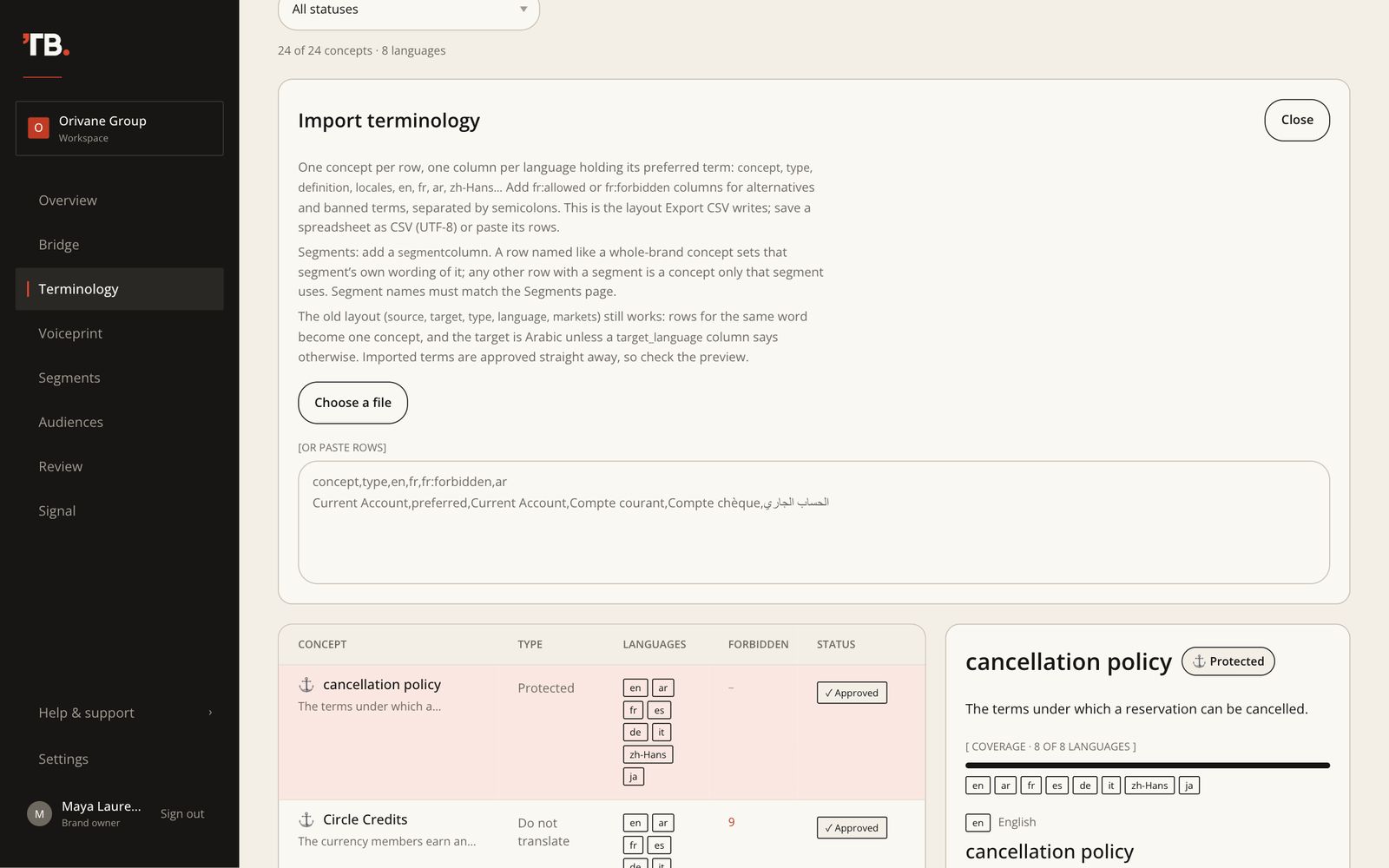
The terminology bank is organised by concept: one brand idea, such as complimentary, with its terms in every language. For each language a concept holds one preferred term, any number of allowed terms, and any number of forbidden terms that must never appear.
A run from language A to language B enforces every concept that has a term in A: it uses B’s preferred term and never B’s forbidden ones. Forbidden terms are banned in every run into their language, whatever the source.
| [TYPE] | [WHAT IT MEANS] | [ORIVANE EXAMPLE] |
|---|---|---|
| Protected | The preferred term is used exactly, never varied. | cancellation policy |
| Preferred | The standard rendering in each language. | guest, suite, concierge |
| Do not translate | Kept as written in every language. | Orivane Circle, Circle Credits |
A concept
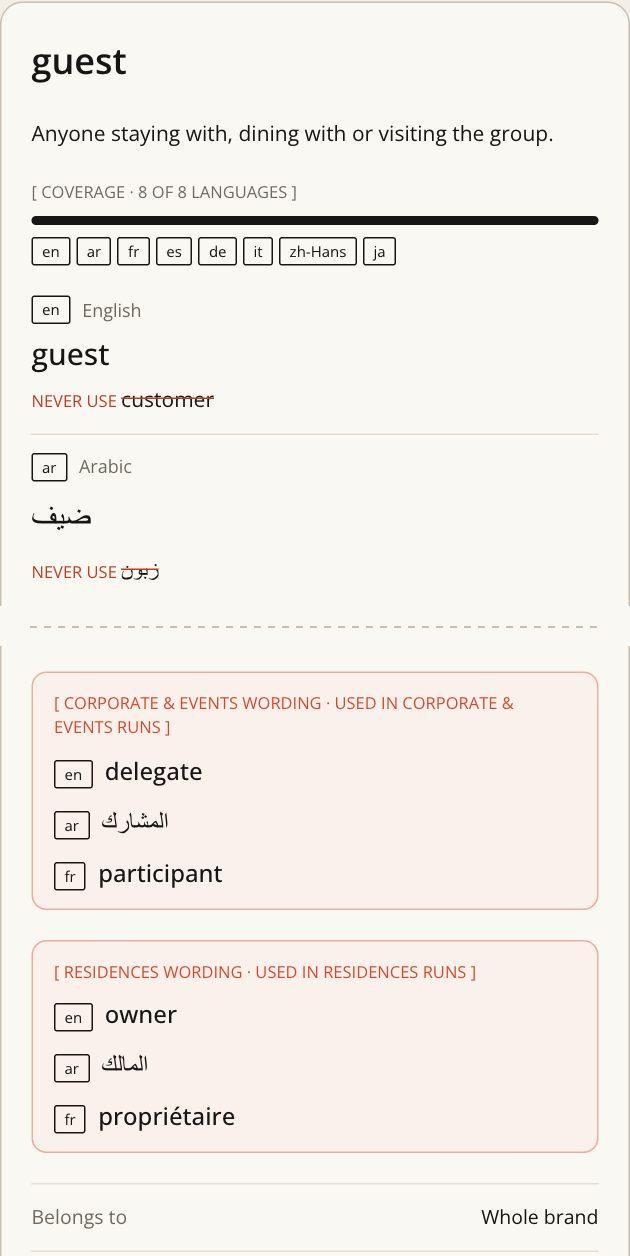
Click a concept to open its panel: its definition, its coverage across your languages, and each language’s preferred term with its Never use list. From there you can edit it or see where it was used.
Segment terms and wording
When your brand has segments, a concept has a Belongs to setting. A whole-brand concept applies in every segment. A concept that belongs to one segment is only enforced in that segment’s runs, for the words it focuses on.
A whole-brand concept can also be worded differently for a segment. In the concept’s editor, click + Segment wording, choose the segment and language, and add its preferred, allowed or forbidden words. In that segment’s runs its preferred word replaces the brand’s. A word the brand forbids stays forbidden everywhere: ToneBridge refuses it as a segment’s wording.
Add a concept
Click + New concept. Give it a name (usually its term in your main language), a type, and optionally a definition, register and category. Choose where it applies: everywhere, or only some markets such as Arabic (UAE). Then add terms language by language. ToneBridge refuses a term that contradicts another concept and tells you which one to open instead.
Import and export a CSV
Export CSV downloads the whole bank. Import CSV takes the same layout: one concept per row, a column per language holding its preferred term (en, fr, ar, zh-Hans…), and optional fr:allowed and fr:forbidden columns, separated by semicolons. A segmentcolumn assigns a row to a segment: named like a whole-brand concept, it sets that segment’s wording; otherwise it is a concept only that segment uses. You see a preview before anything is written, and rows that contradict the bank are listed and skipped.
Mine terms from approved content
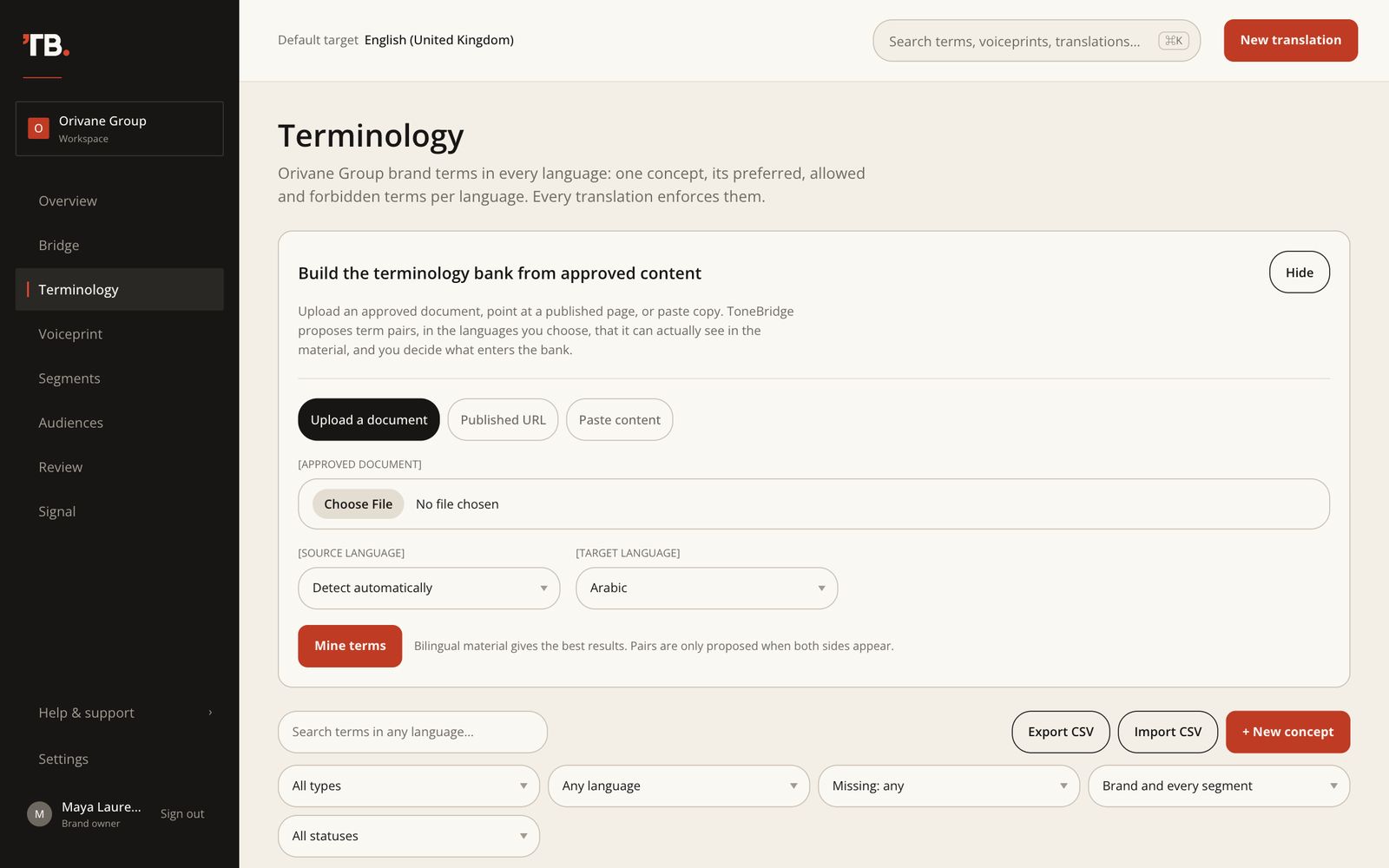
In Build the terminology bank from approved content, upload an approved document, point at a published page, or paste copy. Choose the source and target languages and click Mine terms. ToneBridge proposes term pairs it can actually see in the material; you approve, edit or reject each before it enters the bank. Bilingual material gives the best results.
Voiceprint
[Menu → Voiceprint]
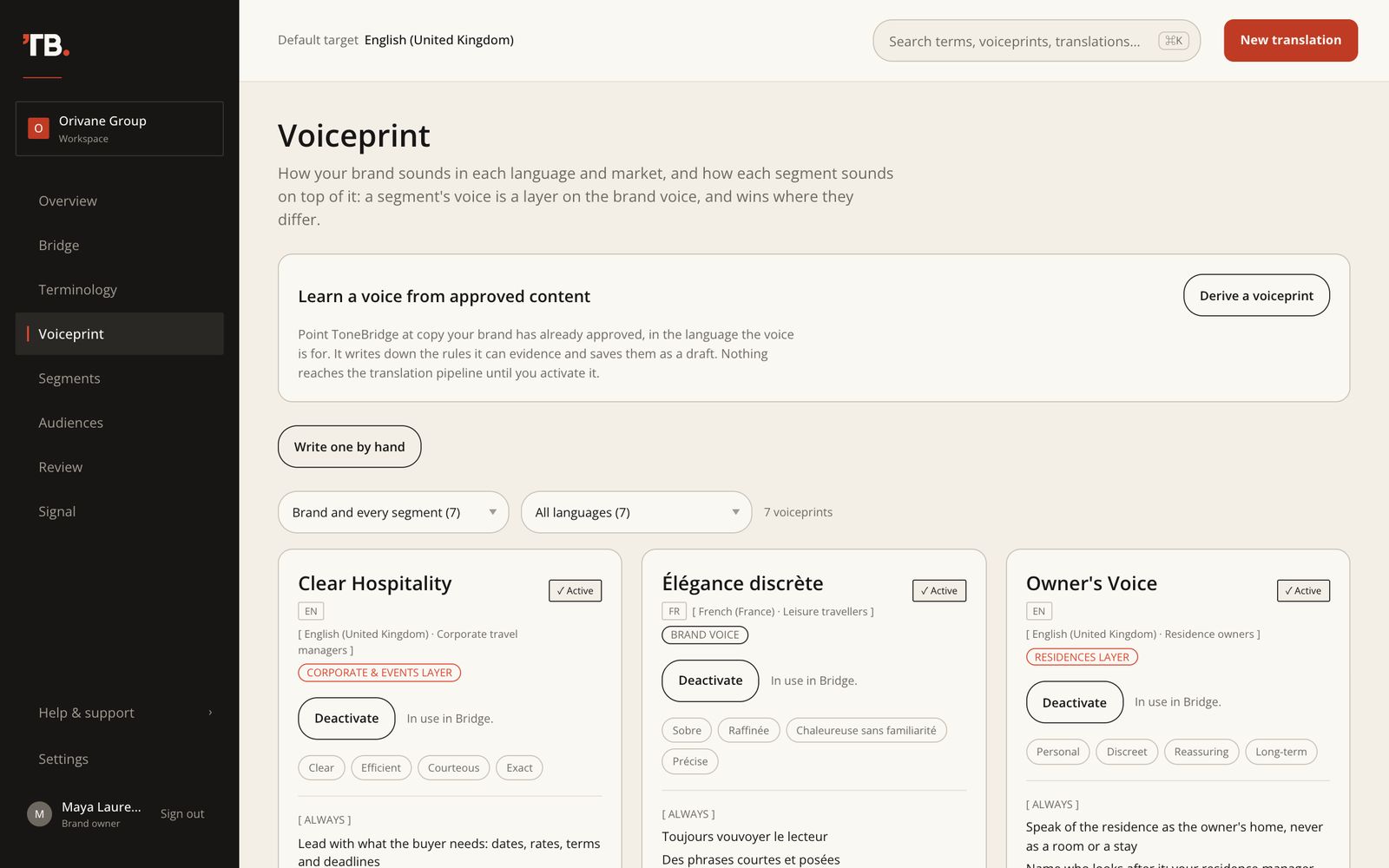
A voiceprint captures how your brand sounds in one language, and optionally one market and audience: its traits, rules to always and never follow, an avoid and prefer example, an optional longest sentence, and the evidence it came from.
A voiceprint is either the brand voice for its language or a segment layer. A layer only holds what is different about the segment: in a run for that segment, ToneBridge applies the brand voice, then the layer, and the layer wins where they differ. A layer can also set its own longest sentence. Choose which one it is under Voice for when you derive or write it.
Derive a voiceprint
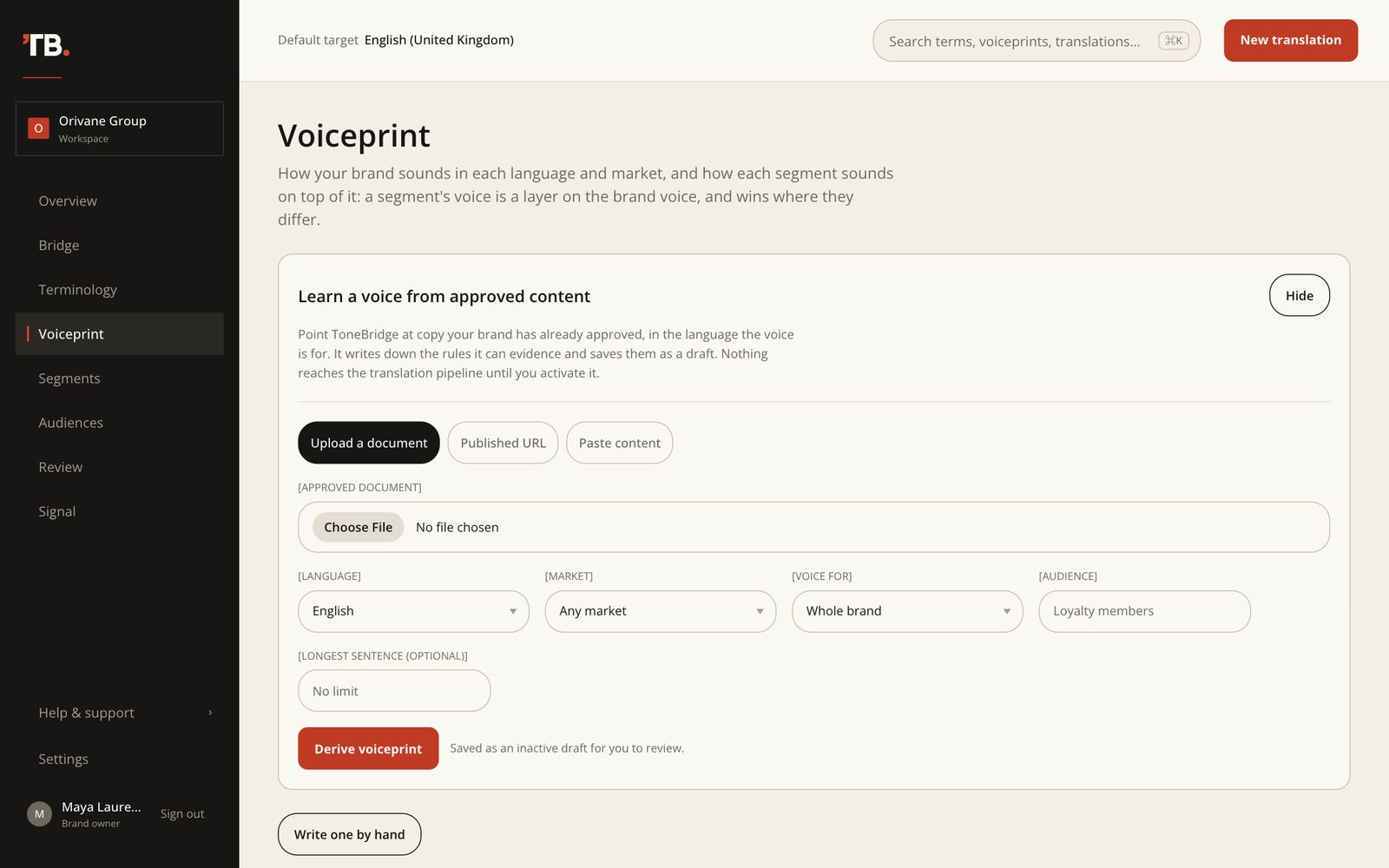
- Click Derive a voiceprint.
- Upload an approved document, give a published URL, or paste copy, in the language the voice is for.
- Choose the language and, optionally, the market, audience and longest sentence.
- Click Derive voiceprint. ToneBridge writes down only the rules it can evidence and saves them as an inactive draft.
- Read it, edit anything you disagree with, then Activate. Only active voiceprints reach Bridge.
Prefer to start from scratch? Write one by hand. To stop using a voiceprint without losing it, click Deactivate.
Segments
[Menu → Segments]
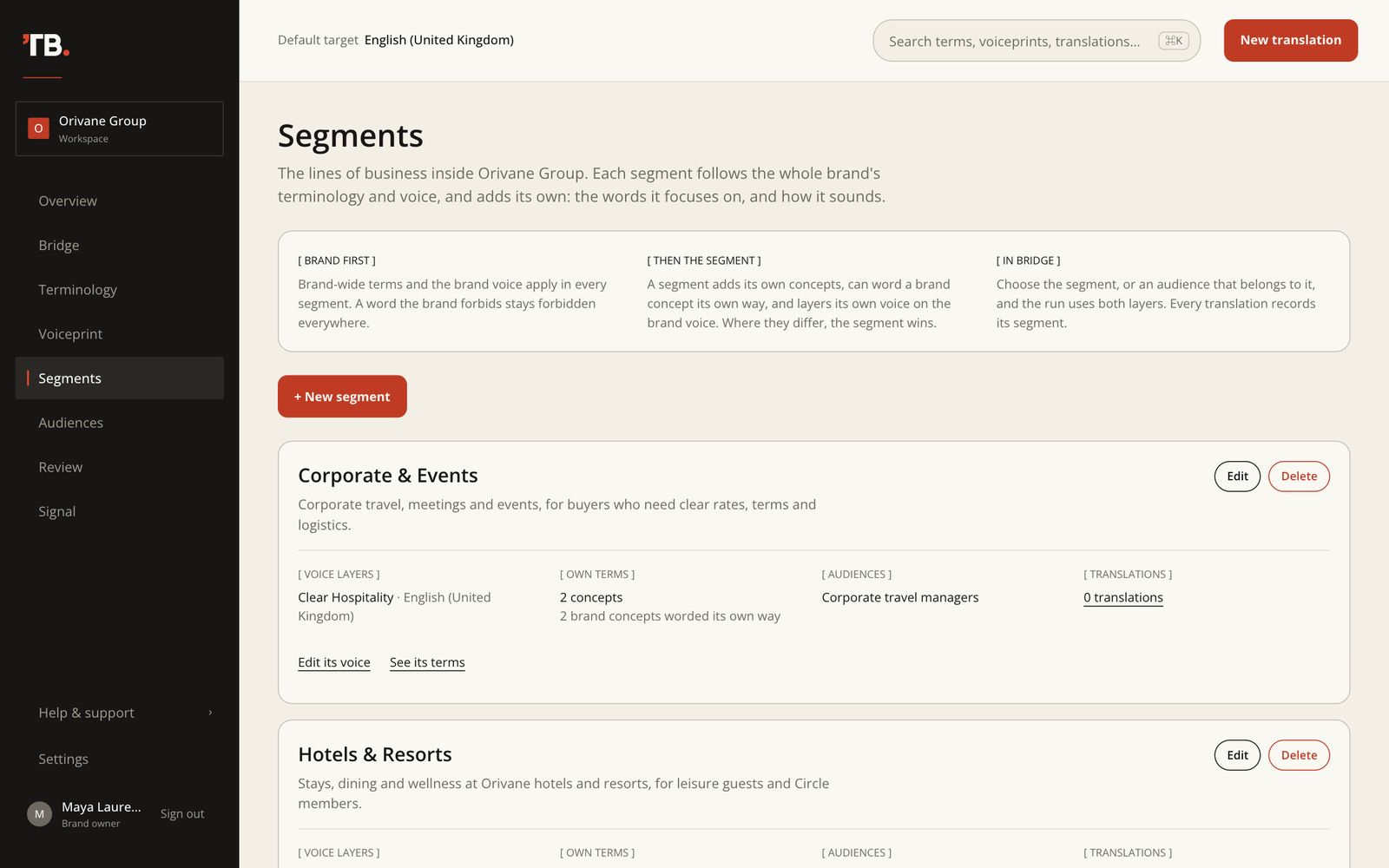
Segments are the lines of business inside your brand, each speaking to its own market. For a bank: Business banking, SME and Individual. For Orivane: Hotels & Resorts, Residences, and Corporate & Events. The whole brand comes first; each segment adds its own layer.
| [LAYER] | [TERMINOLOGY] | [VOICE] |
|---|---|---|
| Whole brand | Brand concepts apply in every segment. Forbidden words are forbidden everywhere. | The brand voiceprint for each language. |
| A segment | Its own concepts, and its own wording of brand concepts, used only in its runs. | An optional layer per language, added on top of the brand voice. It wins where they differ. |
Set up a segment
- On the Segments page, click + New segment, give it a name and say what it covers.
- Give it a voice: derive or write a voiceprint on the Voiceprint page with Voice for set to the segment. Only write what is different from the brand voice.
- Give it its words: add concepts that belong to the segment, or add segment wording to brand concepts, in Terminology.
- Place its audiences:on the Audiences page, set each audience’s segment, so choosing the audience in Bridge selects the segment too.
Audiences
[Menu → Audiences]
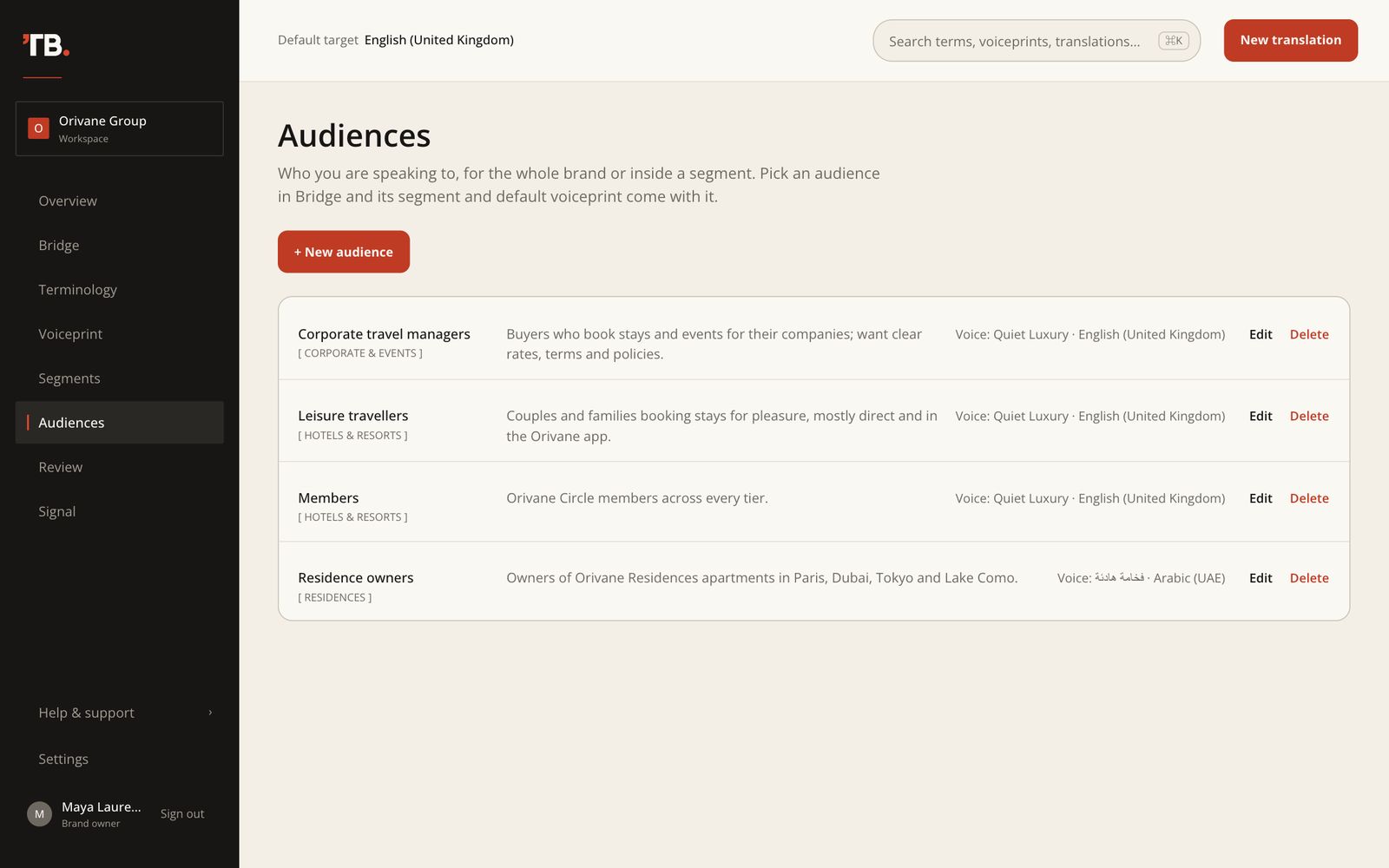
An audience is who you’re writing for: a name, a short description, a default voiceprint, and, when your brand has segments, the segment it belongs to. Pick an audience in Bridge and its segment and voiceprint come with it.
Signal
[Menu → Signal]
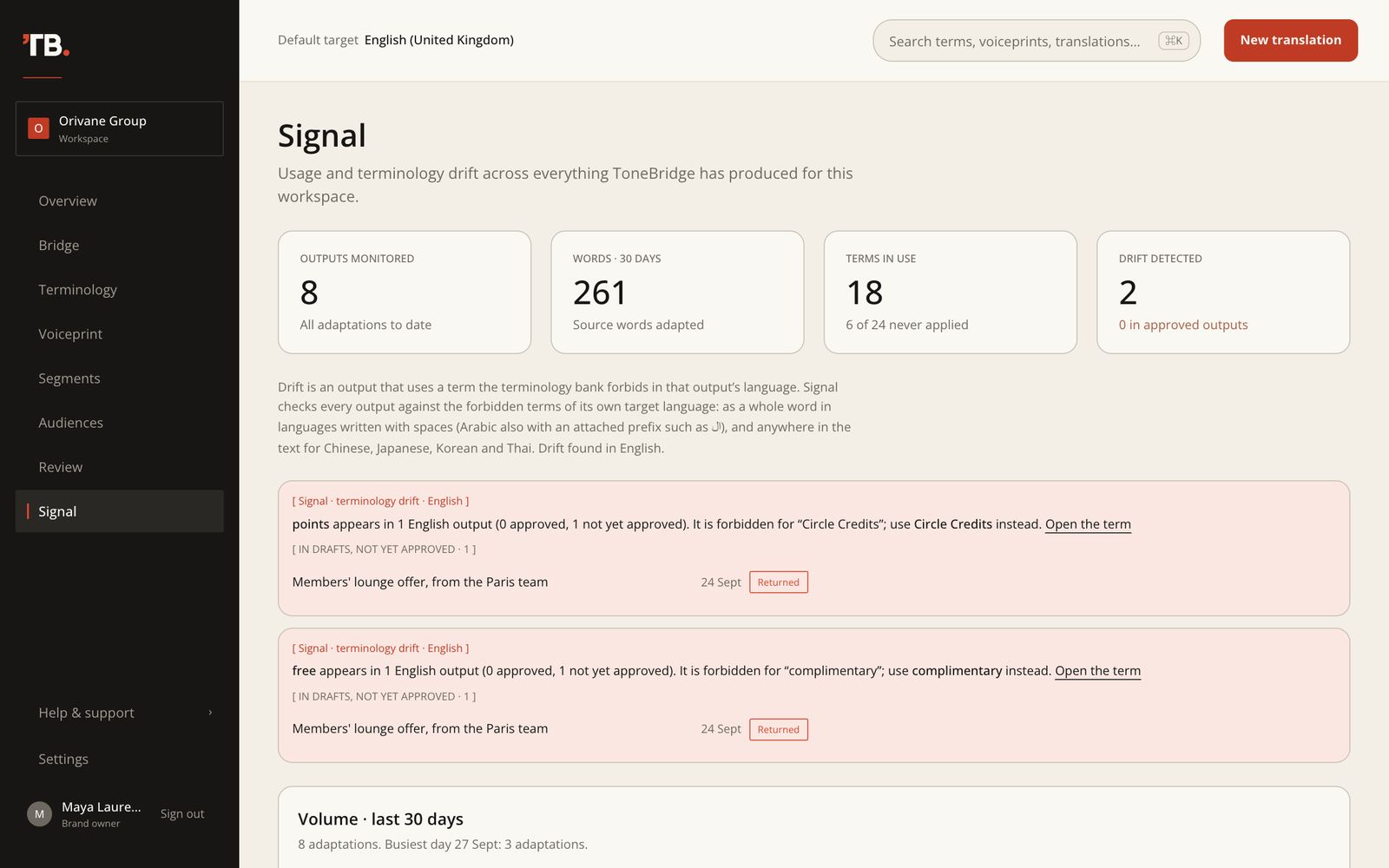
Signal watches everything ToneBridge has produced for the workspace: outputs monitored, words adapted in the last 30 days, terms in use, and drift.
Drift means an output uses a term your bank forbids in that output’s language. Signal checks each output against the forbidden terms of its own language: as a whole word in languages written with spaces (in Arabic also with an attached prefix such as ال), and anywhere in the text for Chinese, Japanese, Korean and Thai. A segment’s own forbidden words only count in that segment’s outputs. Each finding says whether it reached approved work, which term to use instead, and where it was found.
Settings
[Menu → Settings (brand owners)]
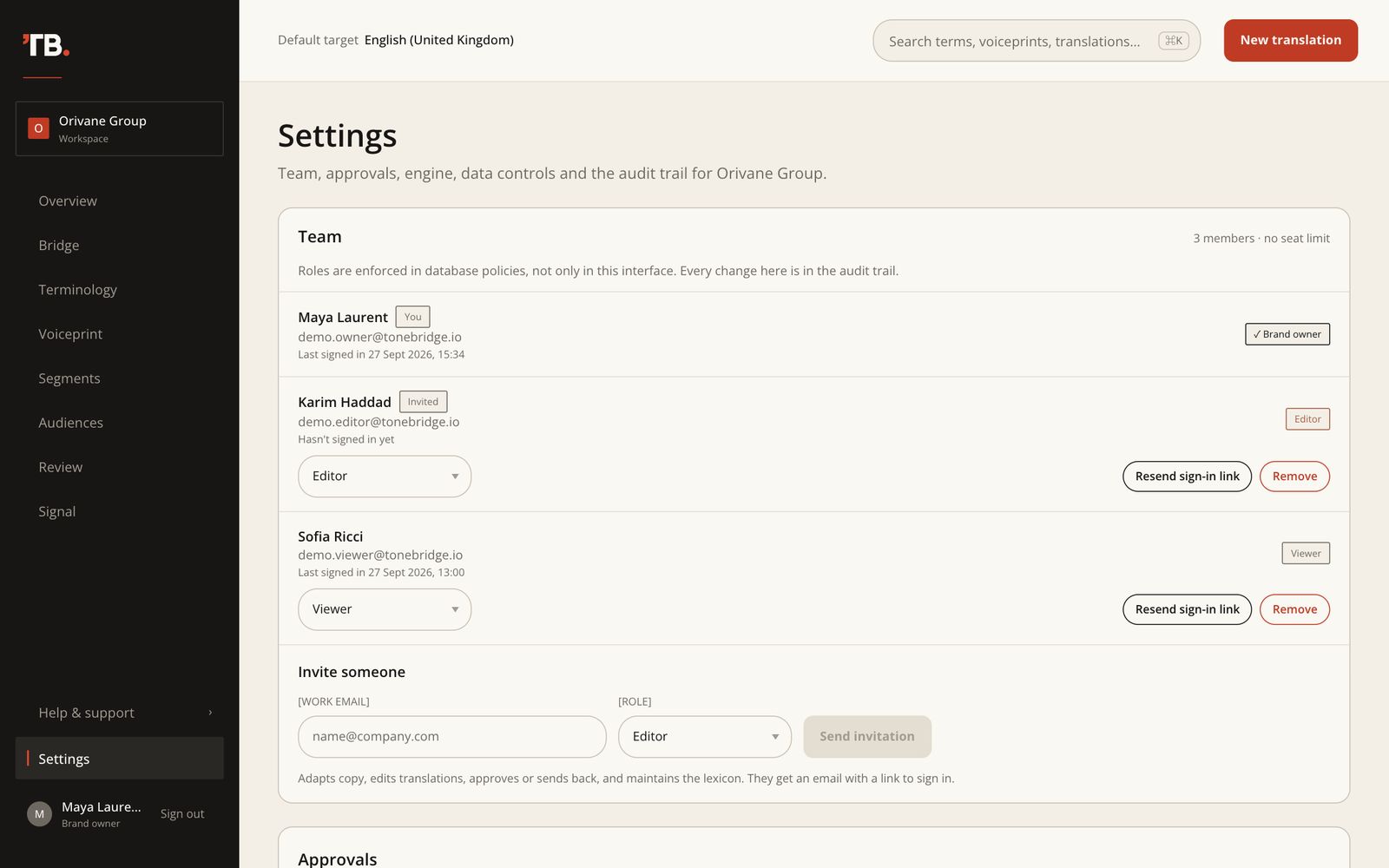
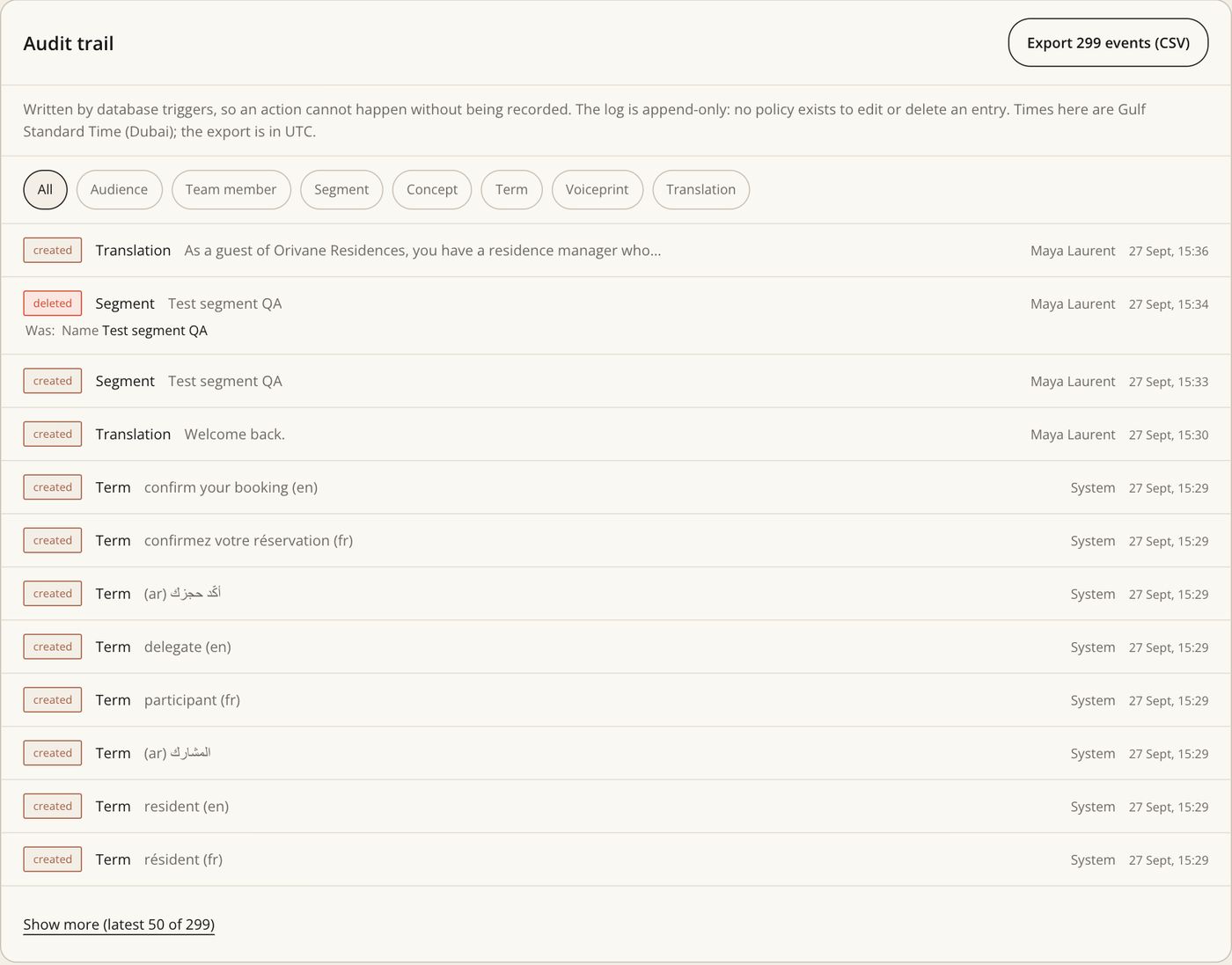
Settings is one page with Team, Approvals, AI engine, Data retention & residency, the Audit trail and Access. Every change is written to the audit trail.
Team
Invite colleagues by work email and choose their role; they get an email with a sign-in link. Change a role from its dropdown, Resend sign-in link if an invitation expired, or Remove someone. Your licence may set a number of seats. A workspace always keeps at least one brand owner.
Approvals
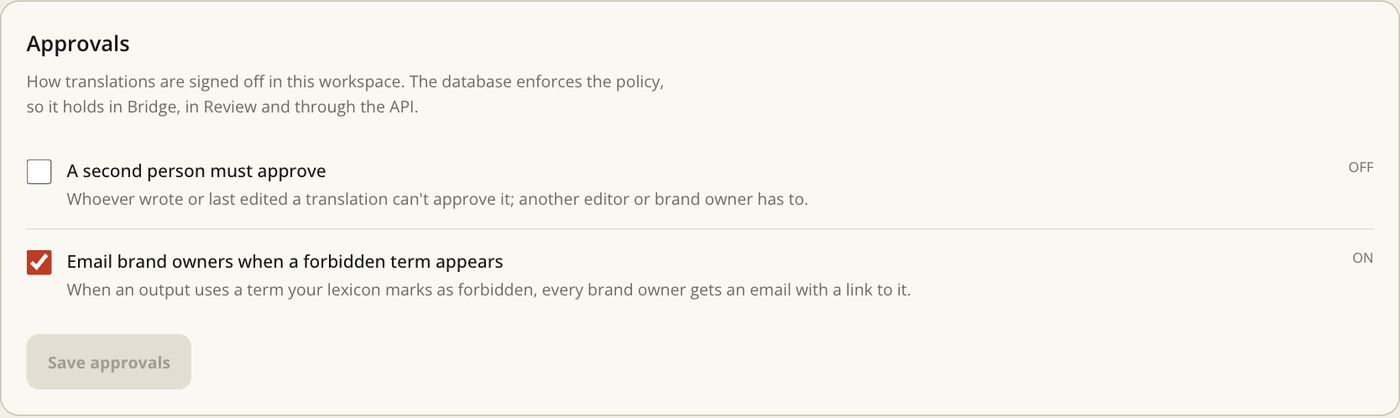
Switch on A second person must approve for four-eyes approval, and Email brand owners when a forbidden term appears for drift alerts. The database enforces the policy, so it holds in Bridge, in Review and through the API.
AI engine
Choose where inference runs: the ToneBridge platform (Anthropic), your own Anthropic key, or your Azure OpenAI deployment. Terminology, voice and governance behave the same on every engine. Keys are encrypted before storage and can’t be read back. The inference region is recorded for compliance; requests are not yet routed by region.
Data retention & residency
Set how many days uploaded source files are kept. Terminology, voiceprints and the translation record are kept regardless. The panel also shows where your data lives and confirms your content is never used for training.
Audit trail
Every action, written by database triggers so it can’t happen without being recorded, and append-only. Filter by type, see what changed, and export it as CSV. Times on screen are Gulf Standard Time; the export is in UTC.
Editors and viewers
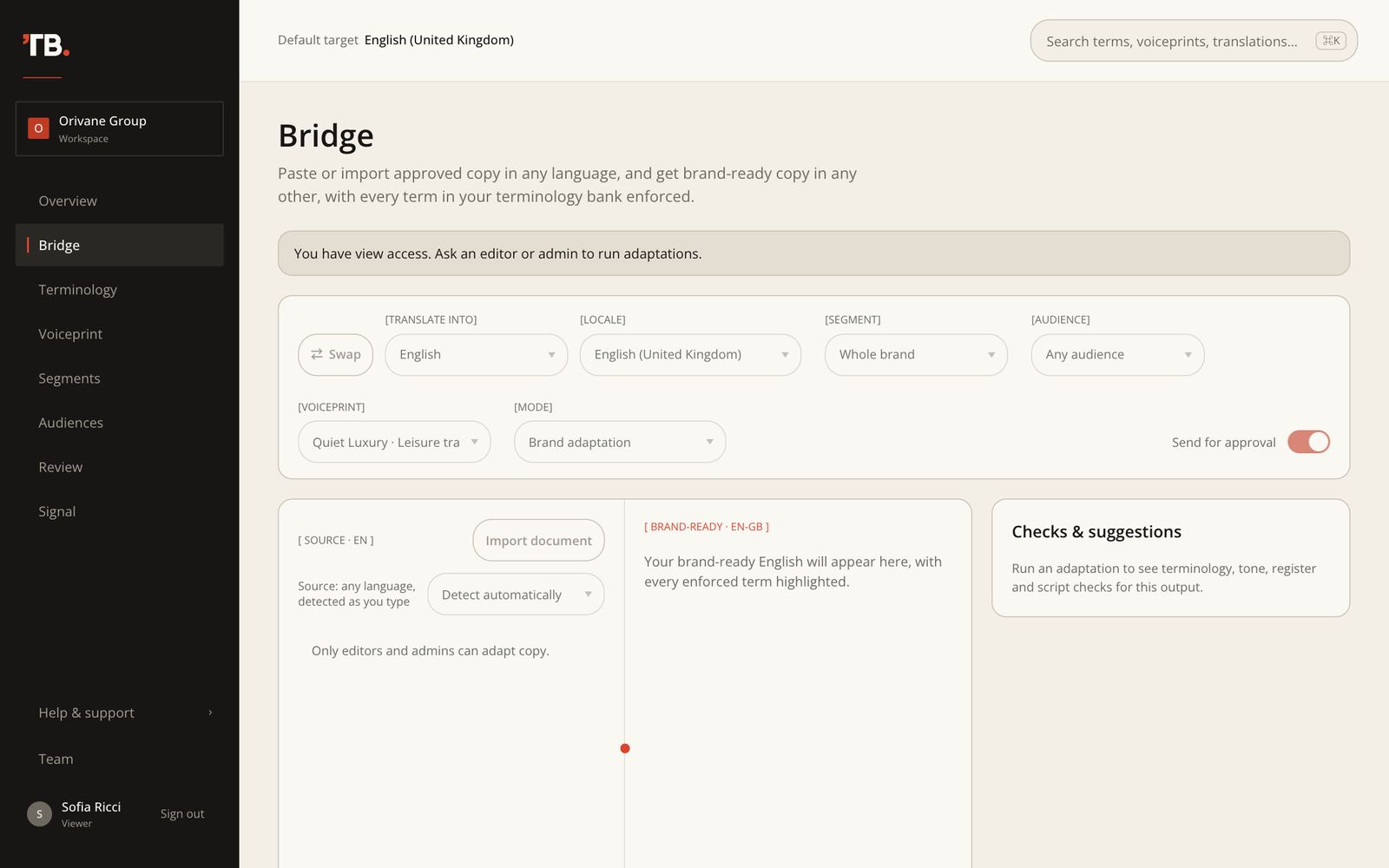
Editors and viewers see Team in the menu instead of Settings: the member list, read-only. Viewers can open everything but not change it; Bridge tells them so.
On your phone
ToneBridge works on a phone. The menu opens from ☰ at the top left, and search and New translation sit under the top bar.
Troubleshooting
The messages you’re most likely to see, and what to do.
| [YOU SEE] | [WHAT TO DO] |
|---|---|
| Wrong email or password. If you joined by invitation you don't have a password | Invited users sign in with an emailed link. Use Email me a sign-in link. |
| This link has expired or was already used | Links last an hour and work once. Request a new one on the sign-in page, or ask a brand owner to resend your invitation. |
| Too many sign-in emails were requested | Wait a few minutes, then try again. |
| Your account isn't linked to a workspace yet | This address isn't in a workspace. Ask the person who invited you to add it, or sign out and use your usual address. |
| No identity provider is registered for your domain | Single sign-on isn't set up for your organisation yet. Use an email link meanwhile. |
| The workspace has been archived, or its licence has expired | The workspace is locked, but nothing has been deleted. Contact your ToneBridge contact and everything returns as it was. |
| This text is already in French, so there is nothing to adapt | Source and target are the same language. Choose another target, or pick the source language by hand if detection was wrong. |
| That is more than ToneBridge adapts in one go (15,000 words) | Split the document and adapt each part. |
| Source or settings changed since this output | Click Regenerate before approving or exporting. |
| A second person must approve this | Four-eyes approval is on and you wrote or edited this translation. Ask another editor or brand owner. |
| “…” is already preferred in … for “…”. Open that concept to change it | The term contradicts another concept. Open that concept and change it there. |
| All seats are in use | Remove someone from the team, or ask your ToneBridge contact to add seats. |
| No key is saved for that engine yet | Paste the key in Settings → AI engine before switching to it. |
| No text layer found. This looks like a scanned PDF | Export the pages as images (JPG or PNG) and import those. |
| This PDF positions text character by character | Words have split apart. Fix the text in the source panel, or import the Word original. |
| That file is over the 25MB limit | Split the document or compress its images. |
| That page has almost no readable text | The page probably renders in JavaScript. Paste its text or upload a PDF of it. |
| Adaptation failed. Try again. | Usually temporary. Click Adapt again; if it keeps failing, email hello@tonebridge.io. |
Questions
Which languages are supported?
Do I need terms in every language?
Can each line of business sound different?
Can a concept apply only in some markets?
Can I edit a translation before approving?
Can someone approve their own work?
How do I add or remove colleagues?
Is our content used to train AI models?
Where is our data stored?
Can ToneBridge staff see our workspace?
How do I delete a concept, voiceprint or audience?
Glossary
- Concept
- One brand idea, with its terms in every language.
- Preferred term
- The term a translation into that language must use.
- Allowed term
- Another correct term for the concept in that language.
- Forbidden term
- A term that must never appear in that language.
- Protected
- A concept whose preferred term is never varied.
- Do not translate
- A name kept as written in every language.
- Locale
- A language as used in one market, for example fr-CA or ar-AE.
- Voiceprint
- How the brand sounds in one language: traits, rules and examples.
- Segment
- A line of business inside the brand, with its own terms and voice layered on the brand's.
- Segment wording
- A segment's own preferred, allowed or forbidden words for a whole-brand concept.
- Voice layer
- A segment's voiceprint, applied on top of the brand voice and winning where they differ.
- Audience
- Who you're writing for, with a segment and a default voiceprint.
- Mode
- How freely Bridge adapts, from literal to marketing transcreation.
- Back-translation
- A literal rendering of the output back into the source language.
- Drift
- An output that uses a forbidden term.
- Four-eyes
- Approval by someone other than the author or last editor.
- Audit trail
- The append-only record of every action in the workspace.
Questions this guide doesn’t answer: hello@tonebridge.io